 |
Event Manager Administrative Tasks |
| Last Updated: December 2025 | |
UniTime includes the following capabilities for Event Managers:
These capabilities give Event Managers fine-grained control over the rooms they manage.
Event Statuses allow managers to control which rooms are available for users to approve and also restrict the set of users who can request events in a room.
The first step an event manager must take is to switch to the academic session they wish to manage their rooms in. To do this, the Event Manager must click the current session in the upper right-hand corner of the screen.
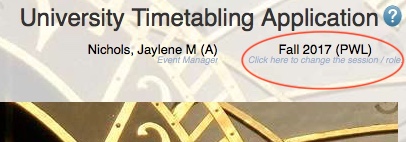
This will bring up the Select User Role page.
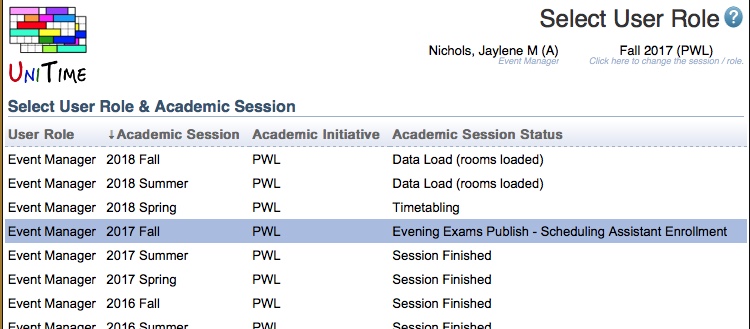
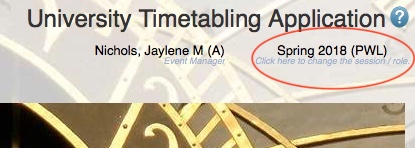
The Event Manager selects the academic session for which they wish to manage their rooms. This will update the session displayed in the upper right-hand corner of the screen.
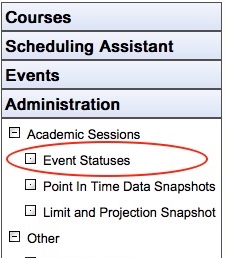
Event Managers control the availability of their rooms for event management on the Event Statuses page, accessible via a menu item under the Administration > Academic Sessions tab (or under Preferences tab when there is no Administration available).
On the Event Statuses page, you can manage your rooms at the room type level, the individual room level, or both. The page lists the default status, notes, optional services, and break times for each room type for the departments an Event Manager controls. The page starts by showing a list of room types and their event management status.
To view the event management status for the individual rooms of a room type, the Event Manager can click the  icon next to each room type, which expands to show the rooms.
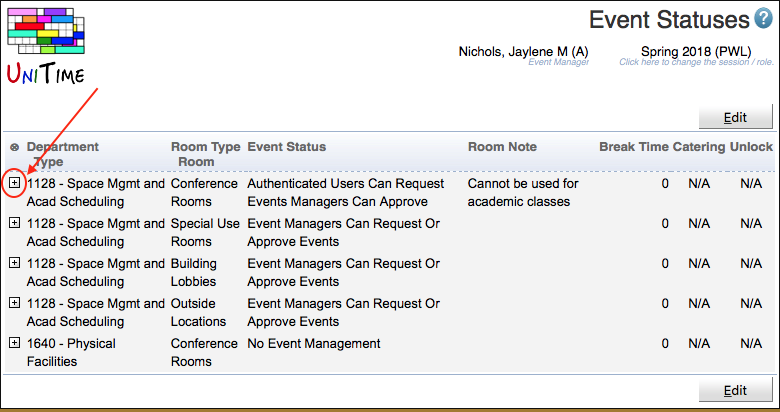
A room’s event management status data is blank unless it differs from the data defined for the room type.
Optional services that may be assigned to a room are listed on the right of the table. If the service is available for the room, a check mark appears in the column for that service. The list of available services can be managed on the Administration > Other > Service Providers page.
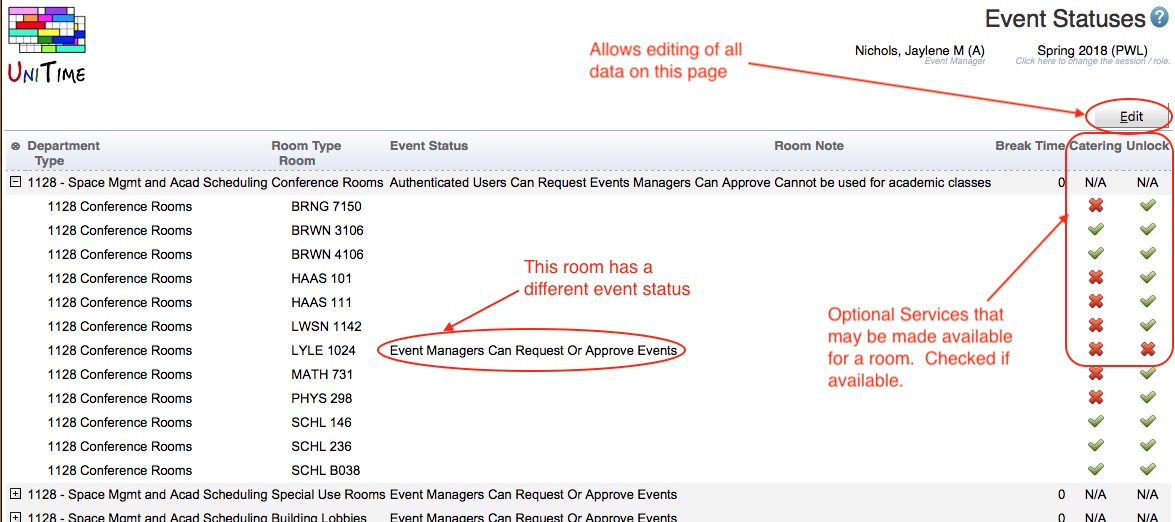
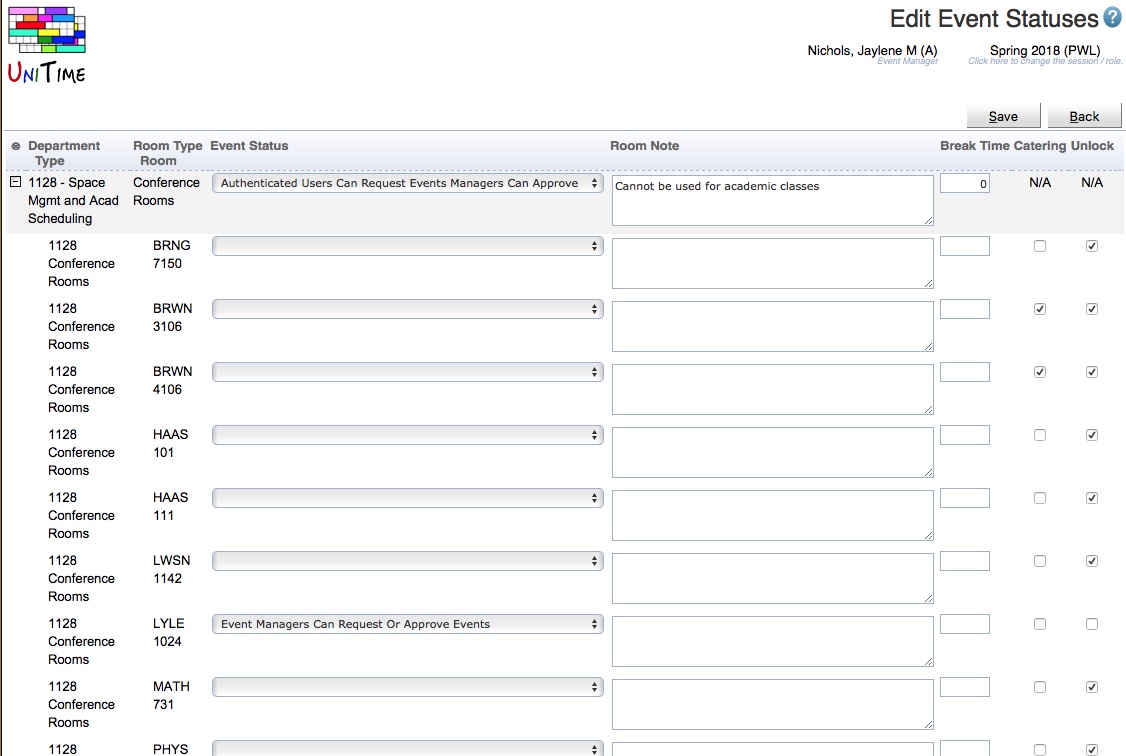
An Event Manager can edit all information for the room types and rooms on this page by clicking the Edit button.
On the Edit Event Statuses page the Event Manager can do the following:
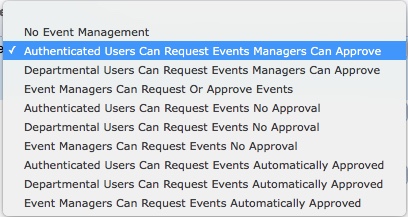
The event status can be set to one of the following:
If an Event Manager selects a single room or room type in the Event Statuses list, they are taken to a screen where they can edit the data for an individual room or room type.
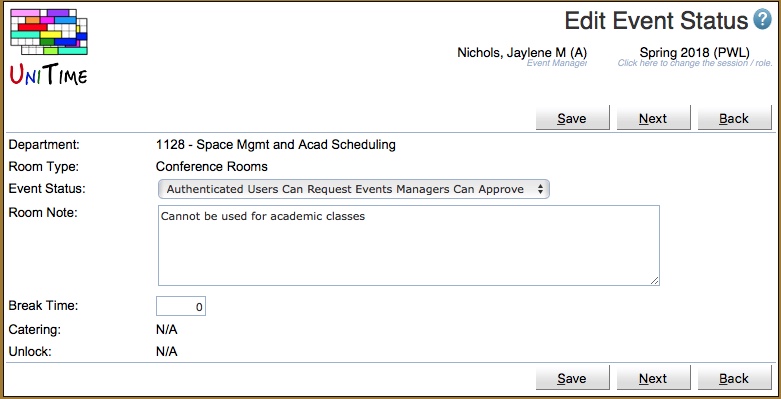
This page allows the Event Manager to edit the same data that can be edited on the list page.
Service Providers can be created at a global or departmental level. Service providers provide a way to automatically notify the service provider that an event requires a specific service at the time the event is approved, and to automatically notify the service provider if the event is canceled.
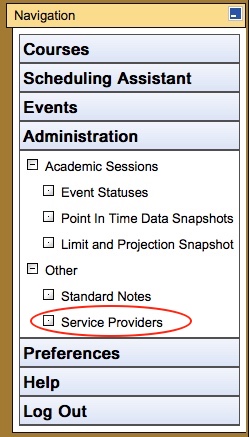
Each Event Manager can create service providers specific to their department, or an Administrator can create a service provider available to all departments. To do this, the Event Manager can go to the Service Providers page found under the Administration > Other tab.
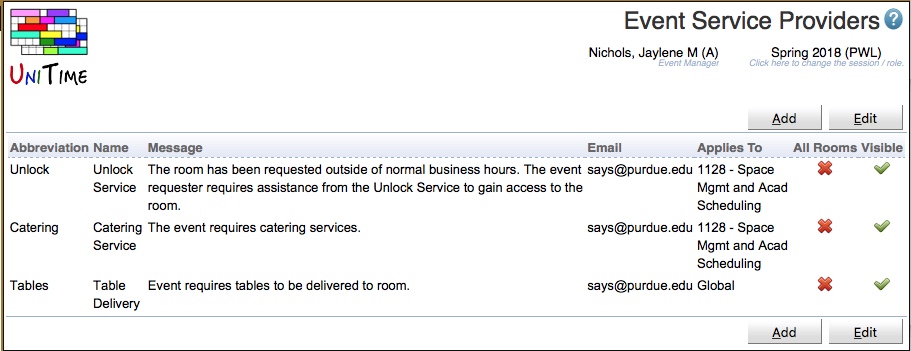
On the Event Service Providers page, Event Managers will see a list of service providers for their departments, as well as the global service providers.
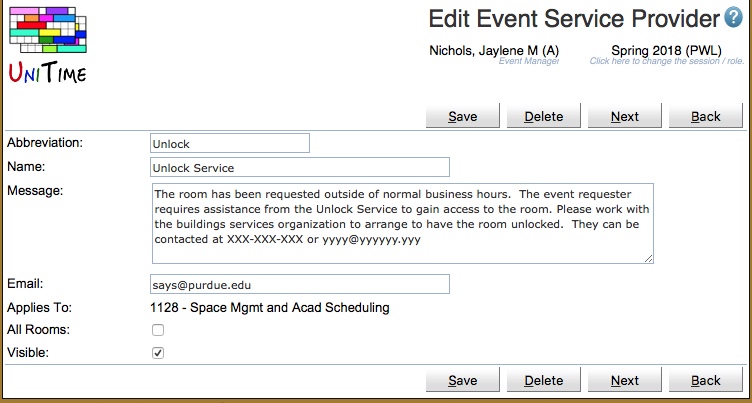
An Event Manager can add a new service provider for their departments by clicking the Add button.
On the Add Event Service Provider page the Event Manager can enter information about the service including a note that will be displayed to the event requestor providing more information about the service, the email address that will receive the event approvals/cancellations, select which of their departments the service applies to and whether the service applies to every room managed in the department or only selected rooms.
On the Event Service Providers page, the Event Manager can click the Edit button and edit all of their departmental service providers at one time.
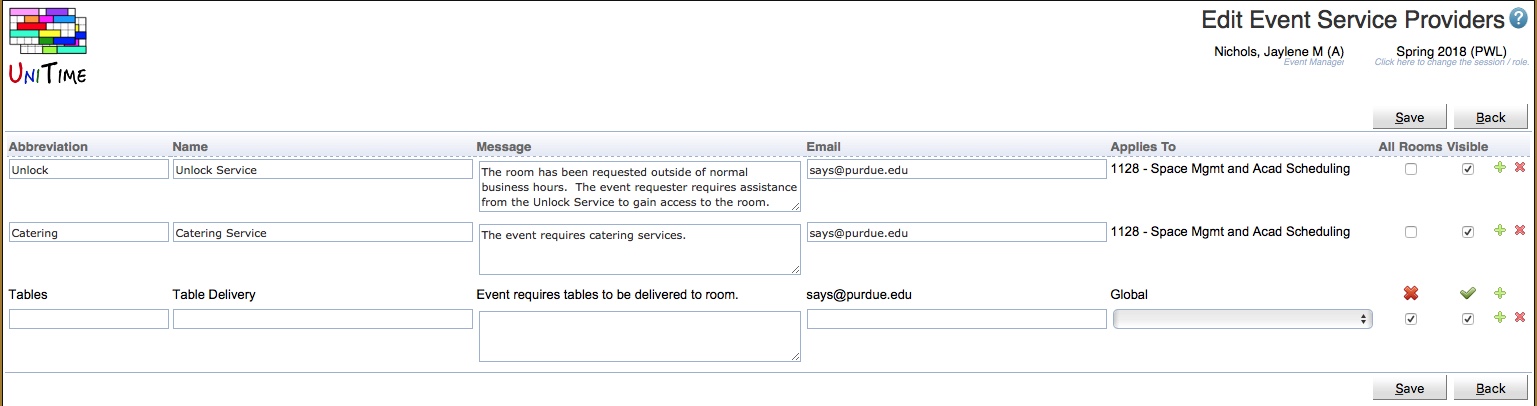
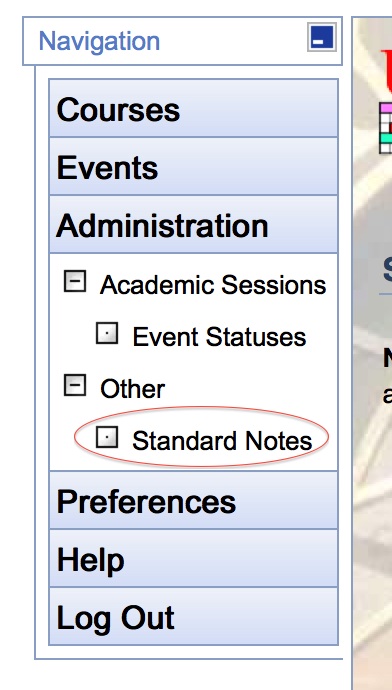
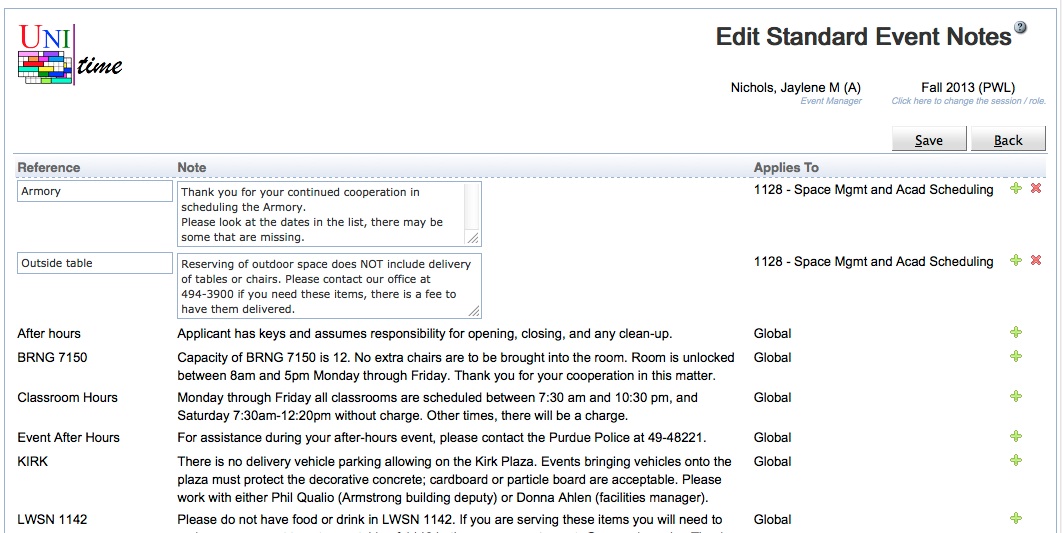
Each Event Manager can now create standard notes that are specific to their department. To do this, the Event Manager can go to the Standard Notes page found under the Administration > Other tab.
On the Standard Event Notes page, Event Managers will see a list of notes for their departments, as well as the global notes.
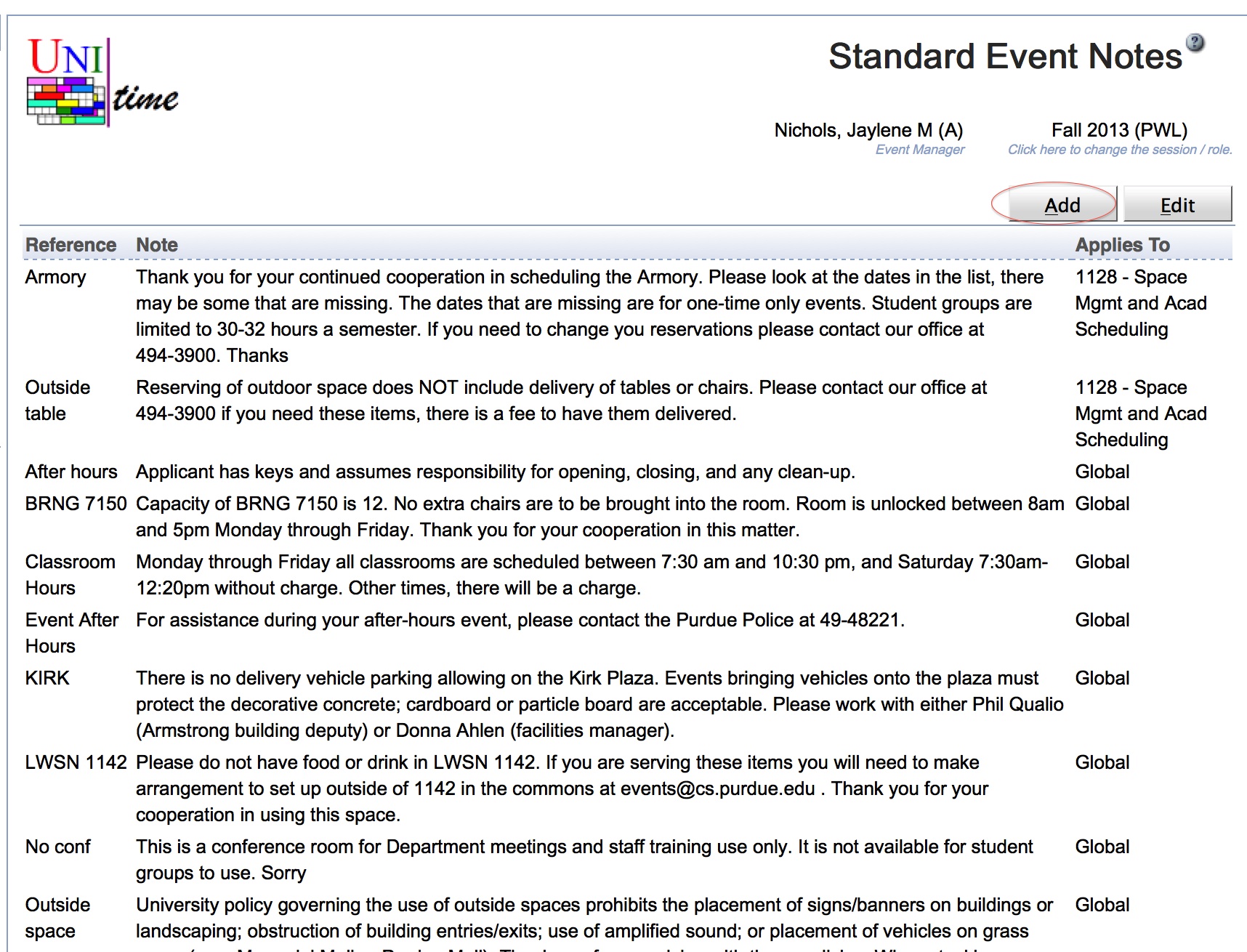
An Event Manager can add a new standard event note for their departments by clicking the Add button.
On the Add Standard Event Note page, the Event Manager can enter the note and select which of their departments the note applies to.
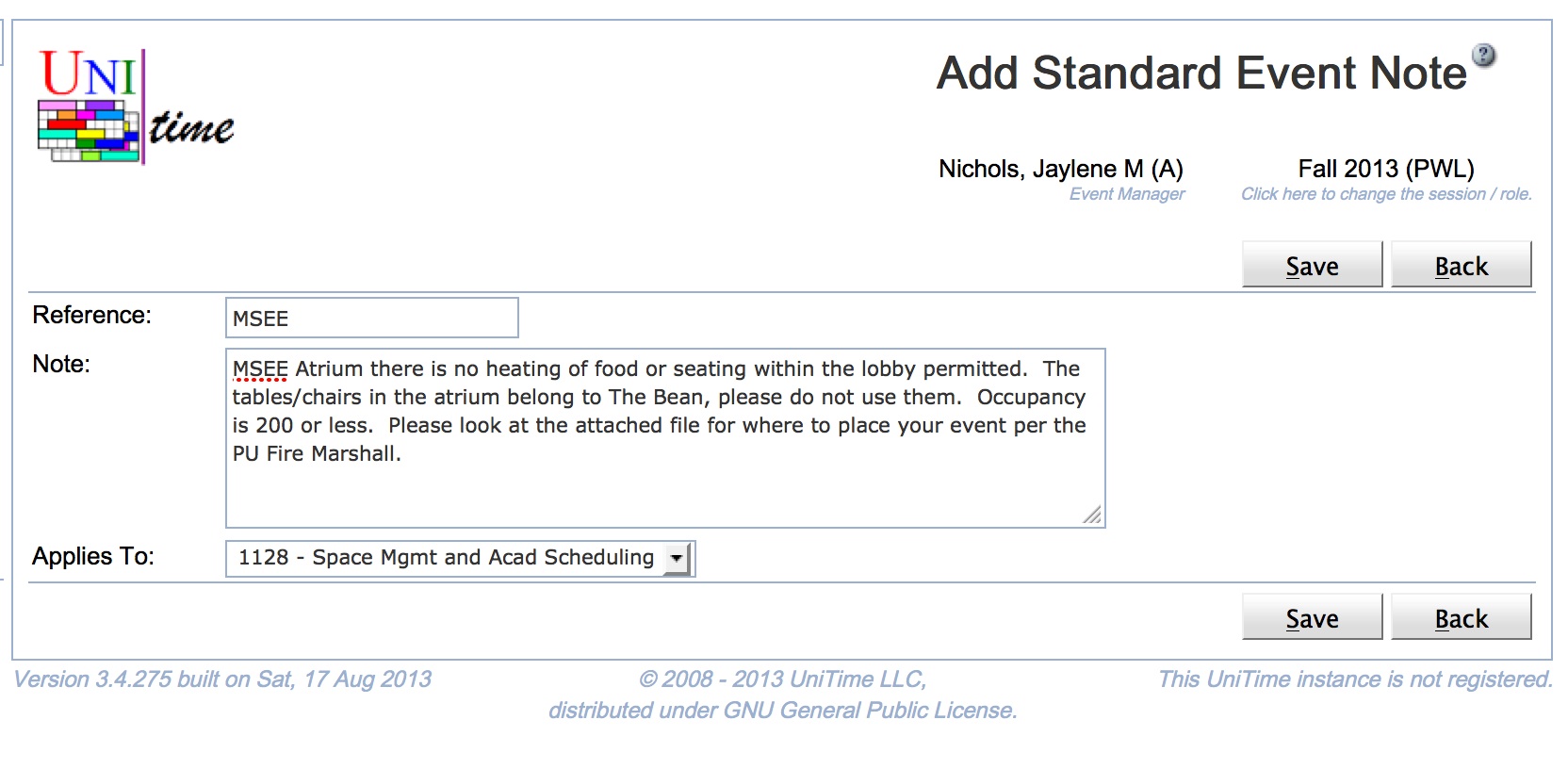
On the Standard Event Notes page, the Event Manager can click the Edit button and edit all of their standard notes at one time.
It is a common case to have an event room that is not available for events all day, every day. It is also a common case for an Event Manager to schedule an event in an event room during the window when the room is closed. UniTime allows an event manager to control the times a room is available for events. During the times when a room is not available for events, only the event manager of that room can schedule events in it.
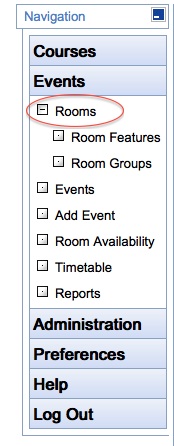
An Event Manager can control the time windows during which a user can request an event in a room. This is done through the Rooms page found under the Events tab.
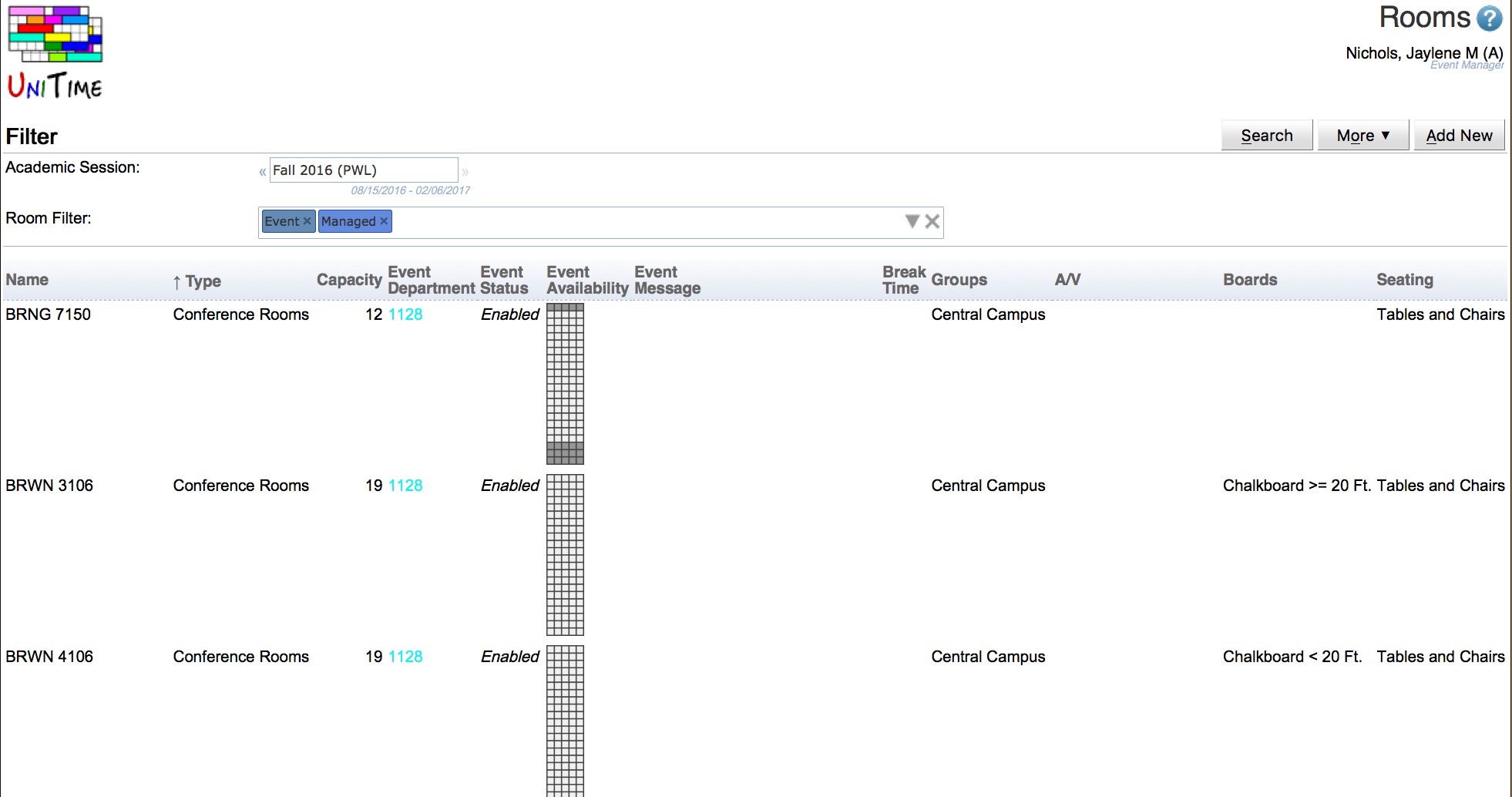
The Rooms page lists the rooms an Event Manager controls. By clicking a room in the list, the Event Manager can go to the room’s detail page.
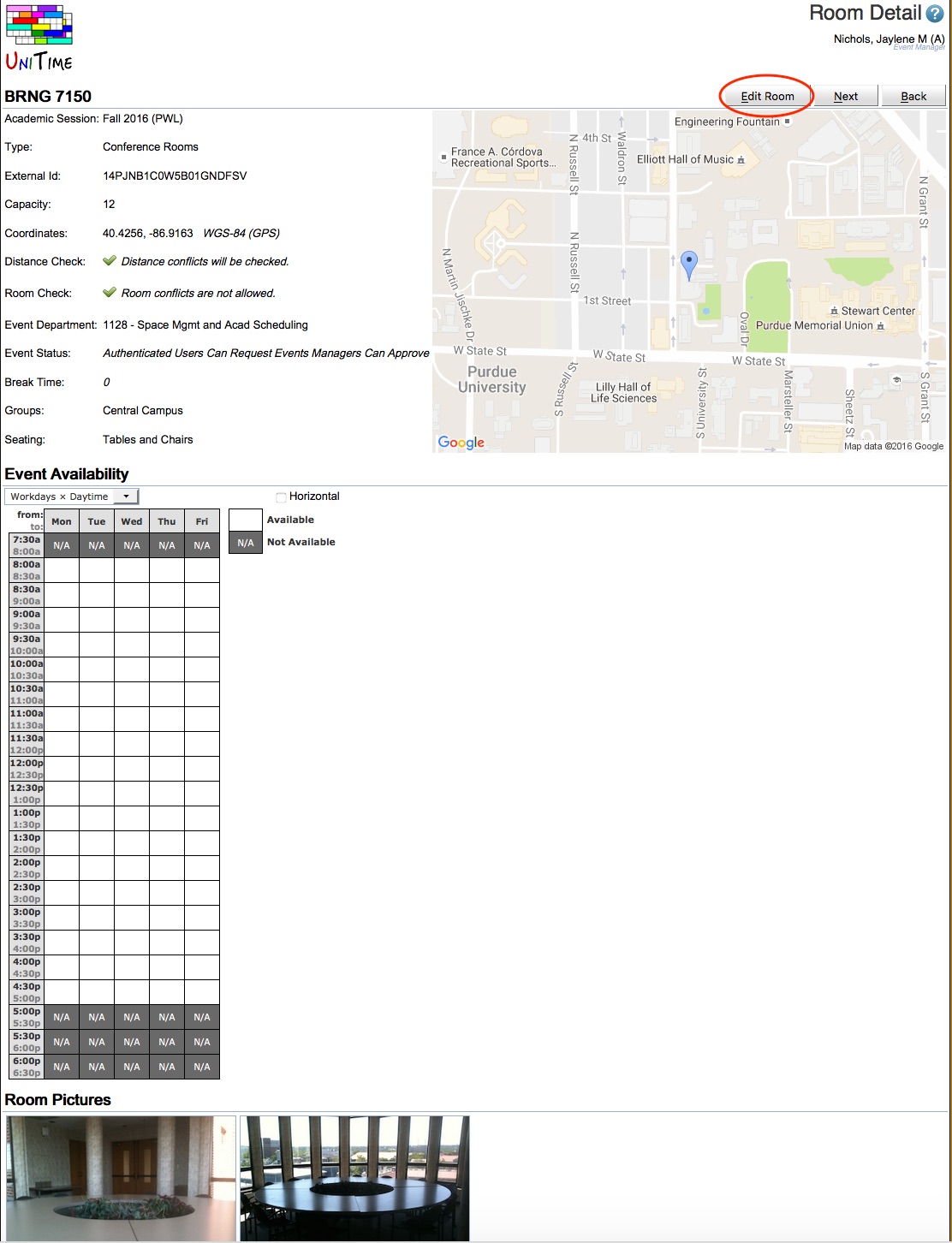
The Room Detail page provides the Event Manager with all of the information about the room. If the Event Manager clicks the Edit Room button, they are taken to a page where they can configure the default hours of operation for the room, manage the note, add pictures for the room, and more.
On the Edit Room page, the Event Manager is presented with a grid to set the times the room is unavailable. It is recommended that, when working with this grid, the Event Manager set the view to “All Week x All Times” to manage the entire time a room could be reserved.
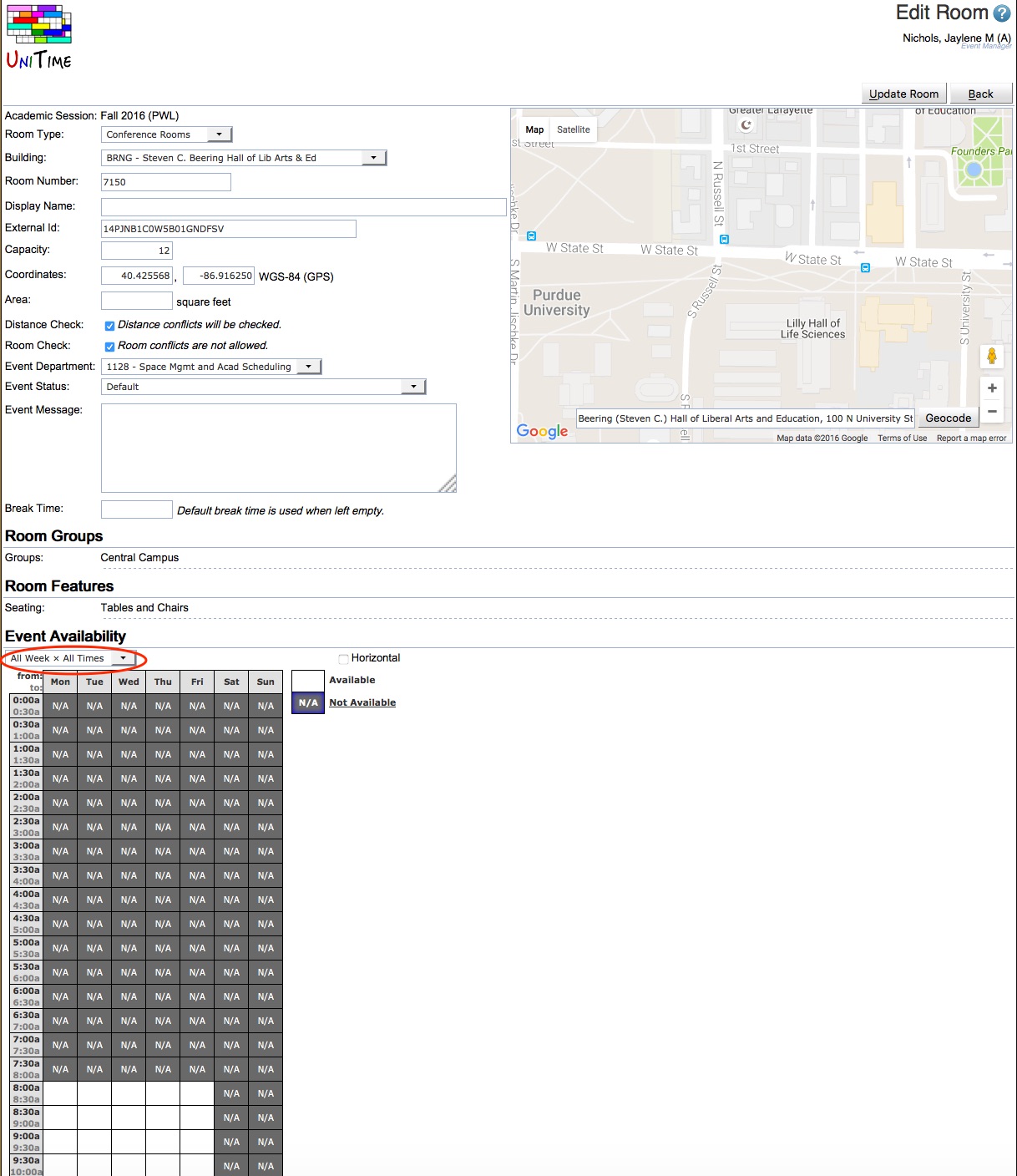
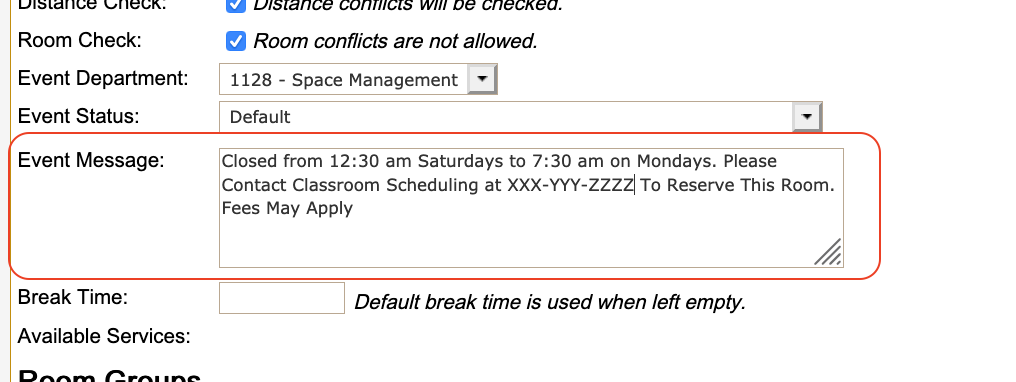
It is a good practice to enter an Event Message that describes the closure window and who to contact to request to reserve the room. This provides users with a valid need to reserve the room outside of its open window and the ability to contact the Event Manager.
An Event Manager for a room can apply changes to a room to multiple future academic sessions as part of a single edit. To do this, the Event Manager should scroll to the bottom of the Edit Room page and select the future academic sessions to update in addition to the current session. The Event Manager can also choose the data to update. When the Event Manager presses the Update Room button, the changes will be made to the currently selected academic session and any future academic sessions the Event Manager selected.

When room types or rooms are restricted to Departmental Users for event requests, the list of users who can request the rooms is the department’s instructors. Event Managers can use the Instructors page under the Courses > Input Data tab.
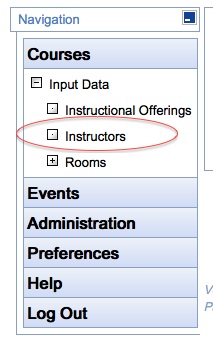
This takes the Event Manager screen to the Instructors page for their department. If the Event Manager manages rooms for more than one department, they can select which department to view.
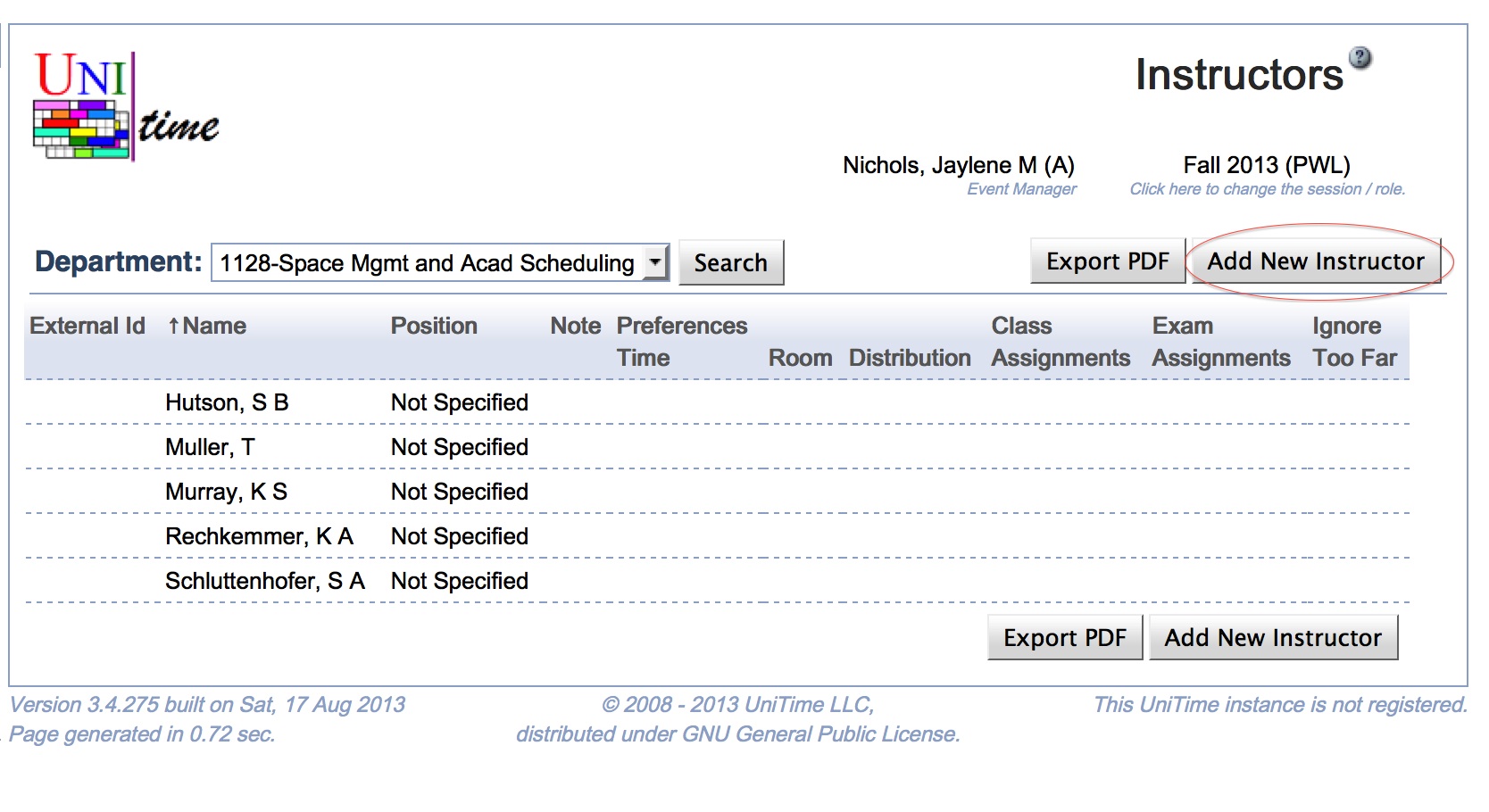
To add a new person to the list of users for a department, the Event Manager can click the Add New Instructor button.
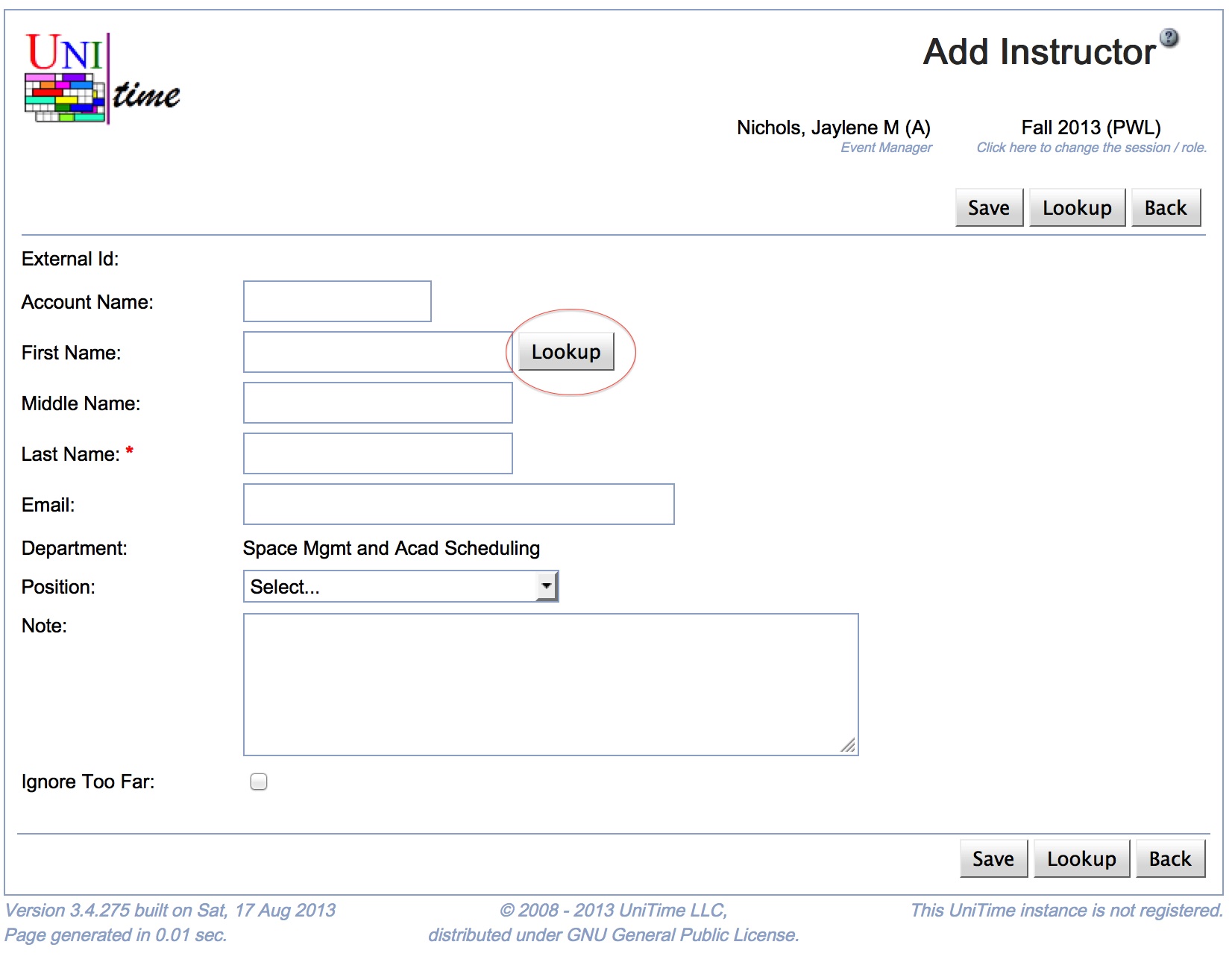
To add a person to the departmental list of instructors so they can request events in rooms restricted to the Event Managers department for a session, the Event Manager must add the person as an instructor for their department. The Lookup button allows the Event Manager to use the People Lookup search for the person they wish to add.
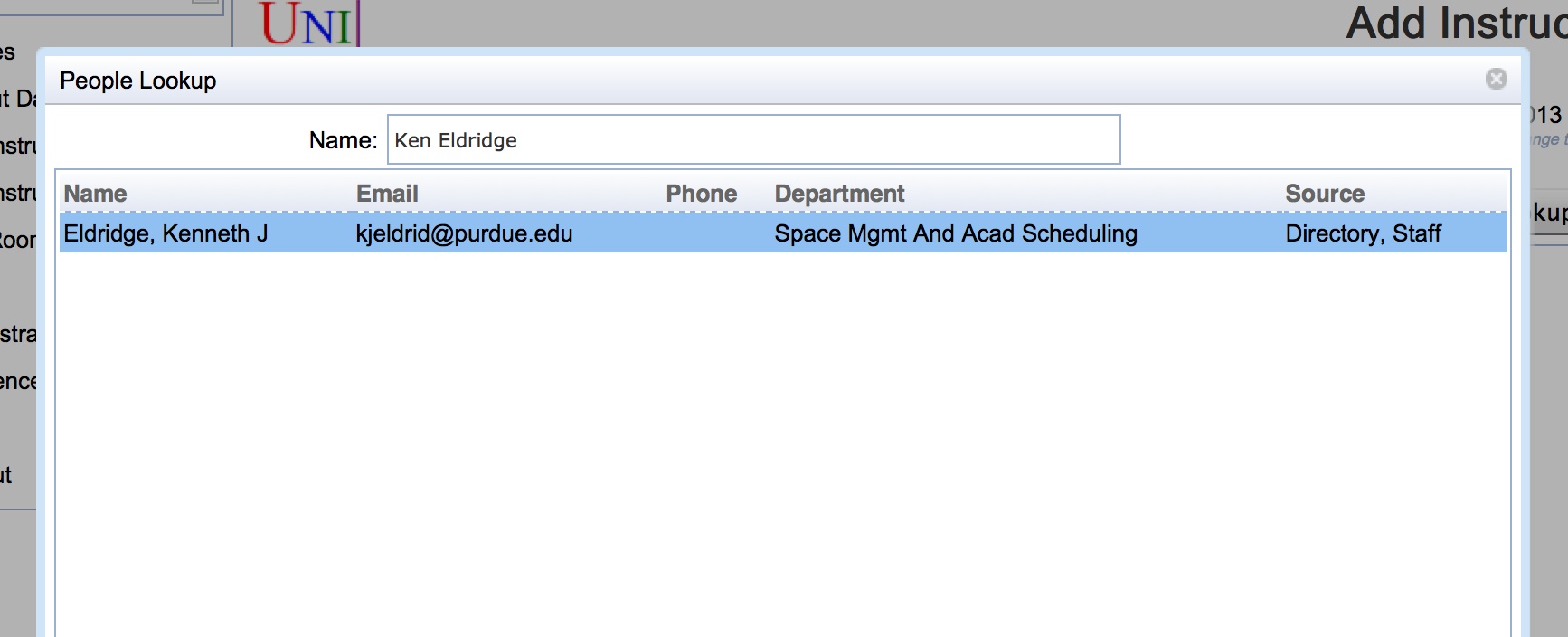
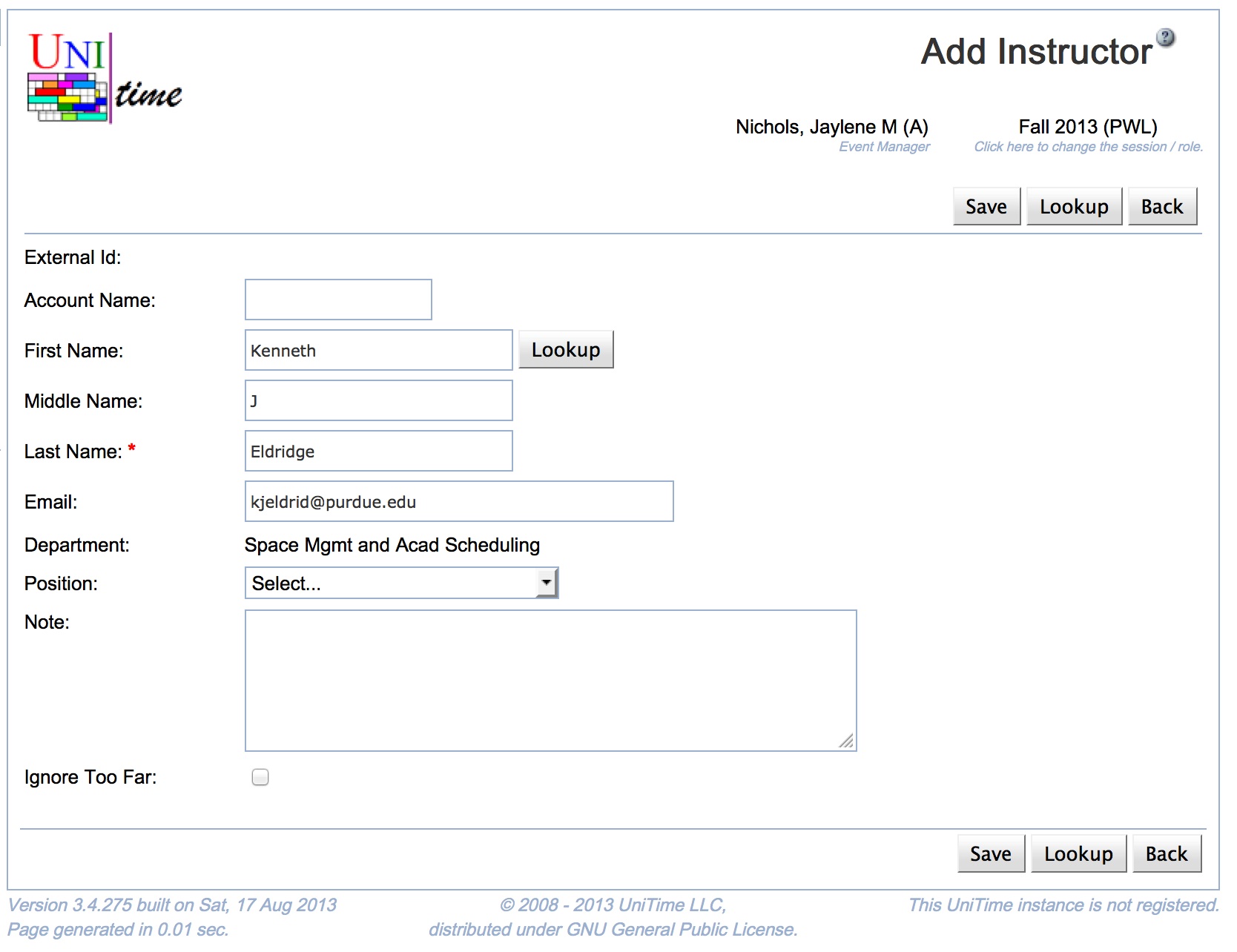
The People Lookup pop-up allows the Event Manager to search for the person they wish to add, and when the search returns, it populates the Add Instructor page with all the data required to add a person as an instructor for the department.
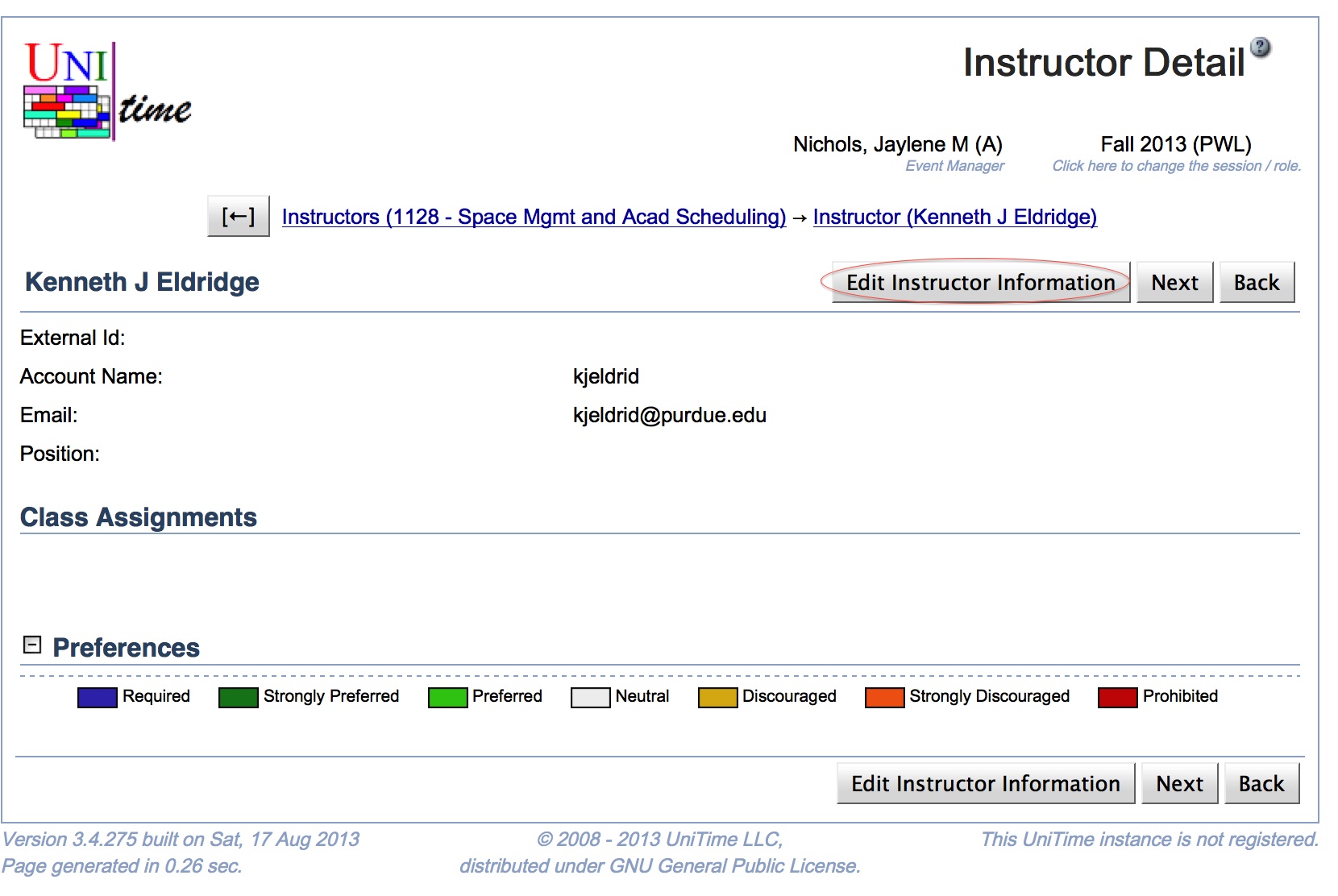
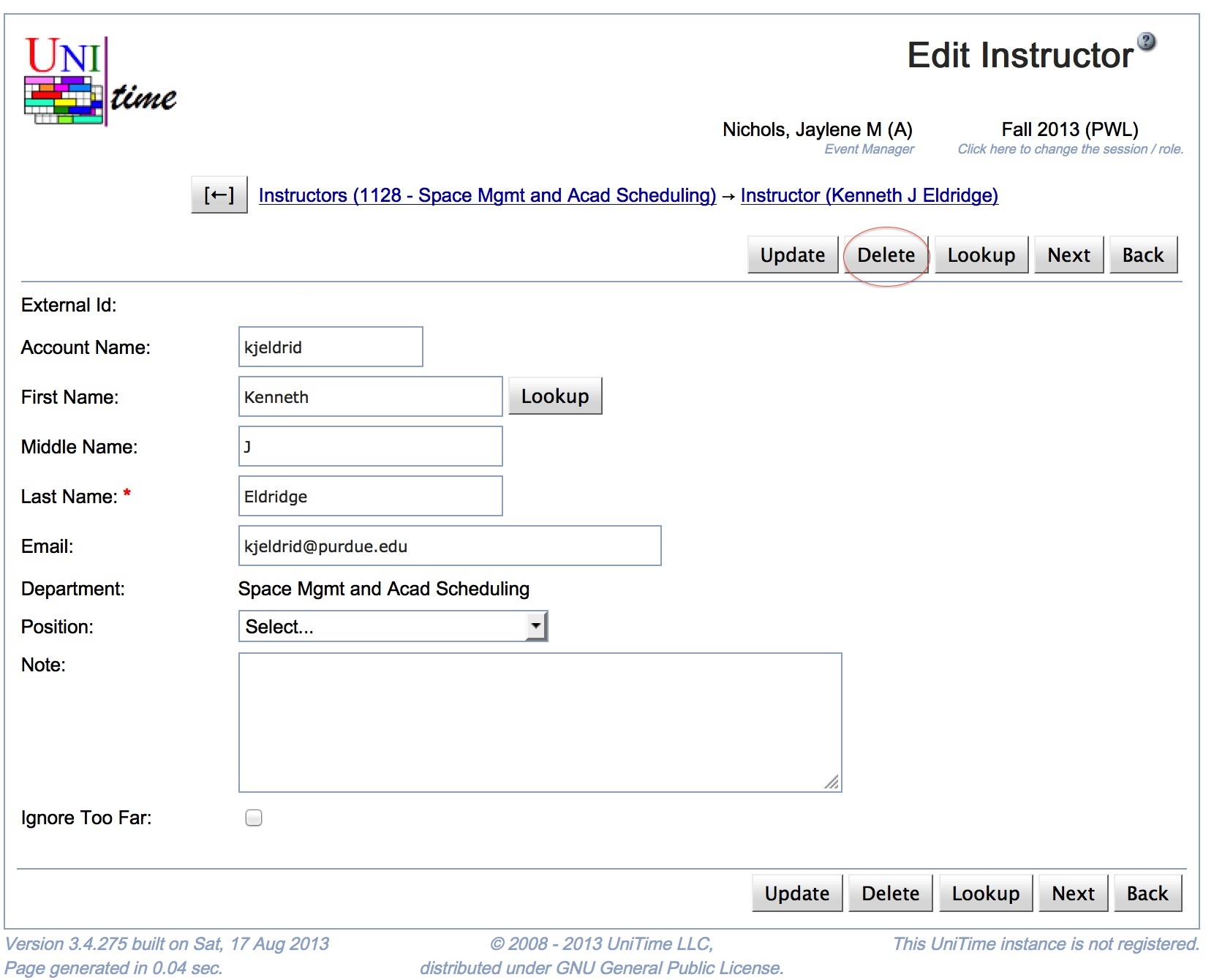
The Event Manager can remove a user’s ability to request events in rooms restricted to a department for a session by removing the user from the Instructor list for their department. To do this, the Event Manager must first go to the Instructor Detail page by clicking the name of the person they wish to remove from the Instructors page. On the Instructor Detail page, the Event Manager needs to click the Edit Instructor button to open the Edit Instructor page, which allows them to delete the record.
Once on the Edit Instructor page, the Event manager can either update the person’s information or click the Delete button to remove the person from their list.
| Back to UniTime Online Documentation | © UniTime 2026 | Content available under GNU Free Documentation License 1.3 |
 UniTime Help