Online Student Scheduling Dashboard
Screen Description
The Online Student Scheduling Dashboard screen provides a tool for displaying a given set of course requests/student enrollments or students. The page also displays information from the sectioning log (either for a particular student or by a given filter). The page is available for administrators, scheduling deputies (can approve consent), student advisors (can change student enrollment), and course coordinators (can approve consent of instructor). Course coordinators can only see courses that are assigned to them. The page has extensive filtering capabilities (by the student, group, curriculum, course, subject, consent, …). It is possible to email students and/or change their scheduling status.
See Student Scheduling Dashboard Manual for additional documentation about the dashboard.
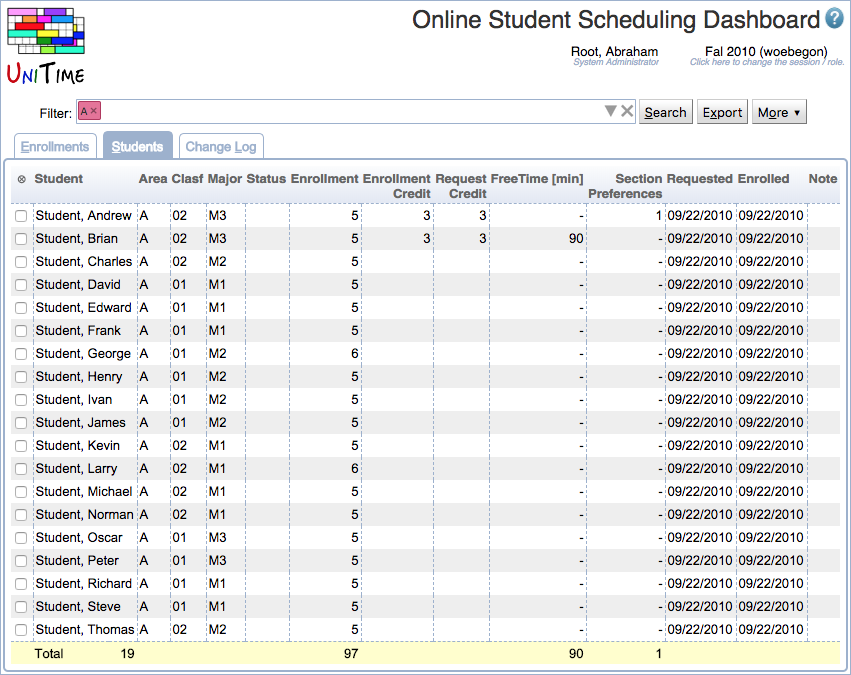
Difference with Batch Student Solver Dashboard
The Batch Student Solver Dashboard offers similar functionality, however, the data displayed on the batch dashboard is related to the Student Scheduling Solver. For users that do not directly interact with the solver, the Batch Student Solver Dashboard shows the data from the last published solver run. During pre-registration, these are typically the results of the previous night’s simulation. After the batch is complete, the page displays the final run of the batch student scheduling solver.
Filter
The filter at the top of the Online Student Scheduling Dashboard page controls the search criteria used to display data on the page. When the user accesses the Online Student Scheduling Dashboard page for the first time the filter will be blank. Once the user has entered search criteria in the filter and performed a search the page will remember the last search performed by the user and automatically populate the filter with that search criteria the next time the user accesses the page. See Scheduling Dashboard Filter for more details.
Note: In addition to any search criteria entered into the Filter, the data displayed in the Scheduling Dashboard is also filtered by the access to the data granted by a user’s role.
Details
The page shows up to three tabs - Enrollments with detailed information about courses and classes, Students with enrollment information ordered by students, and Change Log with a list of changes in enrollments. See the description for each of them below.
Sorting
Each of the tables can be sorted by various columns. To do so, click the More button and explore the Sort By option. To reverse the order of the table, click on the same Sort By option for the second time.
Show/Hide Columns
It is possible to hide/show certain columns. To do so, click the More button and explore the Columns option. Columns that are available, but not visible are prefixed by ☐ icon, columns that are visible are prefixed by ☑ icon. Selecting a column will change the status from shown to hidden and back.
Enrollments
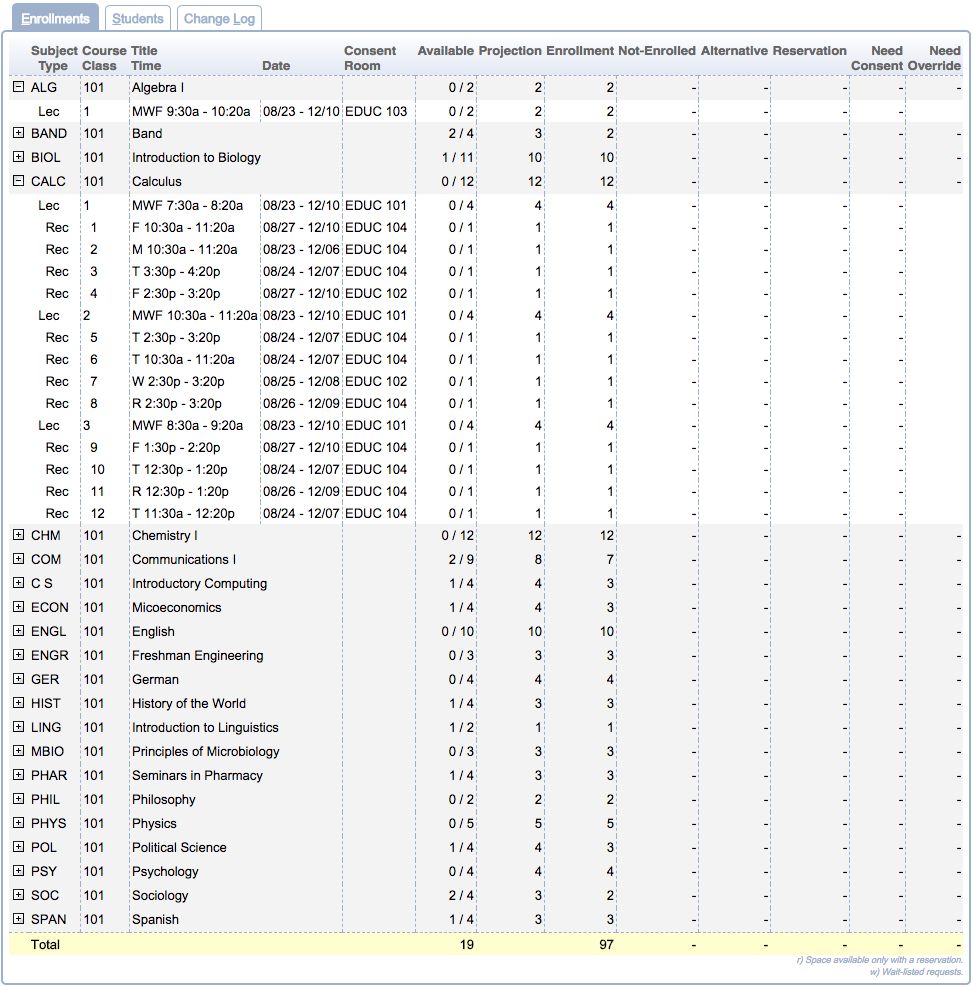
Click on any class or course to get to its Enrollments dialog (which shows a list of enrolled students together with some additional information).
Students
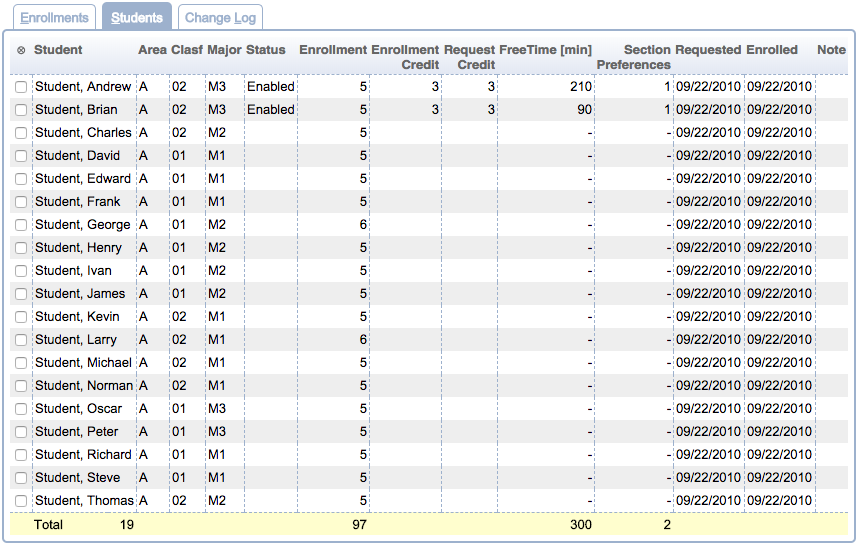
Note: Some columns need not be displayed in the table if they are not applicable to the current situation.
- ⊗ (an optional column for the student selection checkboxes)
- Click on this column header (or the More button) to open a menu with possible actions.
- Please note that most actions are available only when at least one checkbox in this column is checked for some student. I.e., there is at least one student for whom the action can be called.
- Select All
- Select all students in the list (check all the checkboxes)
- Clear All
- Send email…
- Send email to the selected students via Send email… screen that will pop up
- Mass cancel…
- Cancel the schedule(s) for all selected students and inform the students about it by email in the Mass cancel… screen that will pop up
- Change status to Status
- Change status to System Default (All Enabled)
- This is the only status type that is always present
- Set student status…
- Change student status using the Set student status… dialog which provides additional information about the selected status.
- Set student note…
- External Id (optional column)
- Student’s external ID (university ID)
- Student
- Campus
- Campus of the student (when used)
- Area
- Academic area (e.g., college of the student)
- Clasf
- Academic classification (e.g., year/semester of study)
- Degr
- Program
- Major
- Conc
- Student’s major concentration
- Minor
- Accommodation
- If a student requires an accommodation that affects their course schedule, then the code for the accommodation is displayed in this column.
- This column is only visible if there is at least one student in the data returned by the search criteria in the filter that requires accommodation.
- Group
- Student group or groups that the student is associated with.
- Additional group columns may appear for groups of certain types. For example, if there are student groups of type COHORT, there will be a COHORT column containing cohorts that the student is associated with.
- Status
- If the student has a student scheduling status that has been set to a value other than the session default, then the value is displayed in this column.
- See the description of the Student Scheduling Status Types screen for more details
- Enrollment
- The number of courses the student is enrolled into.
- This column is only visible if there is at least one student in the data returned by the search criteria in the filter that has an enrollment.
- Not-Enrolled
- The number of courses the student has requested but is not enrolled into. This column is only visible if there is at least one student in the data returned by the search criteria in the filter that has at least one course request that the student is not enrolled into.
- Reservation
- The number of reservations provided to a student to place the student into a particular course or class. This column is only visible if there is at least one student in the data returned by the search criteria in the filter that required a reservation.
- Consent
- The number of courses the student is enrolled in that required some form of consent for the student to enroll into the course. This column is only visible if there is at least one student in the data returned by the search criteria in the filter that required consent.
- Enrollment Credit
- This column displays the total number of credits in which a student is enrolled. If the student is enrolled into a configuration of a course that is online (DO) or hybrid (B/H) then the total credit of courses labeled online or hybrid will be broken out inside of parentheses. This column is only visible if there is at least one student in the data returned by the search criteria in the filter that is enrolled into a course.
- Requested Credit
- This column displays the range of credits that may be generated by a student’s course request. This column is only visible if there is at least one student in the data returned by the search criteria in the filter that has saved course requests.
- Distance Conflicts
- This column displays the number of distance conflicts a student has and next to it in parentheses the number of minutes of the longest distance conflict. This column is only visible if there is at least one student in the data returned by the search criteria in the filter that has a distance conflict.
- Overlap [min]
- This column displays the number of minutes of overlapping classes a student has. This column is only visible if there is at least one student in the data returned by the search criteria in the filter that has overlapping classes.
- Free Time [min]
- This column displays the number of minutes that the student is in class during a window of time the student has requested as Free Time. This column is only visible if there is at least one student in the data returned by the search criteria in the filter that has a class overlapping their Free Time request.
- Instr. Method Preferences
- This column displays the number of instructional method preferences a student listed in their course request. If the student is not enrolled in any courses or received all of their instructional method preferences the number of instructional method preferences is displayed. If the student is enrolled in courses and is not enrolled in a class that matches their instructional method preferences, then the number displayed will be the number of instructional method preferences the student had that were met followed by a slash (/) and the number of instructional method preferences the student requested, e.g., 1 / 2. This column is only visible if there is at least one student in the data returned by the search criteria in the filter that has an instructional method preference.
- Section Preferences
- This column displays the number of class section preferences a student listed in their course request. If the student is not enrolled in any courses or received all all of their class section preferences the number of class section preferences is displayed. If the student is enrolled in courses and is not enrolled in a class that matches their class section preferences, then the number displayed will be the number of class section preferences the student had that were met followed by a slash (/) and the number of class section preferences the student requested, e.g., 0 / 1. This column is only visible if there is at least one student in the data returned by the search criteria in the filter that has a class section preference.
- Requested
- Date of student’s requests
- Enrolled
- Date of student’s enrollments
- Advisor
- This column displays the advisor or advisors that the student has assigned.
- This column is only visible if there is at least one student in the data returned by the search criteria in the filter that has an advisor.
- Advised Credit
- For the students that have been advised, this column displays the credit number provided by the advisor (the Total Priority Credit Hours from the Advisor Course Recommendations page), but the color indication shows how the recommendations are followed.
- So, the student can have a similar number of credits requested, but when he/she puts different courses in the color will go from green to orange to red based on the percentage we no longer show.
- More details are available on mouse-over and when the student line is clicked.
- This column is only visible if there is at least one student in the data returned by the search criteria in the filter that has been advised.
- Missing Courses
- This column displays the number of courses the student did not place on their Student Course Requests page that the advisor recommended.
- Missing critical courses are marked in red (with critical or cr next to the number in superscript), other missing primary courses are listed after the number. There is also a mouse-over that will explain the numbers, together with listing the key changes.
- The Missing Courses will sort by the critical numbers first, other missing primary courses second.
- This column is only visible if there is at least one student in the data returned by the search criteria in the filter that has been advised.
- Not-Enrolled Courses
- This column lists the number of courses that the advisor recommended and the student put on the Course Requests form, however, the student is not enrolled in the course (or any of the advisor-provided alternative).
- The number of not-enrolled critical courses is highlighted the same way as in the Missing Courses column (in red with cr superscript). The courses are listed on the mouseover.
- This column is only visible if there is at least one student in the data returned by the search criteria in the filter that has been advised.
- Note
- If someone has placed a note on the student, this column displays the note.
- Emailed
- Information about emails sent to the student
Click on any student to get to the screen with Classes for that student.
Change Log
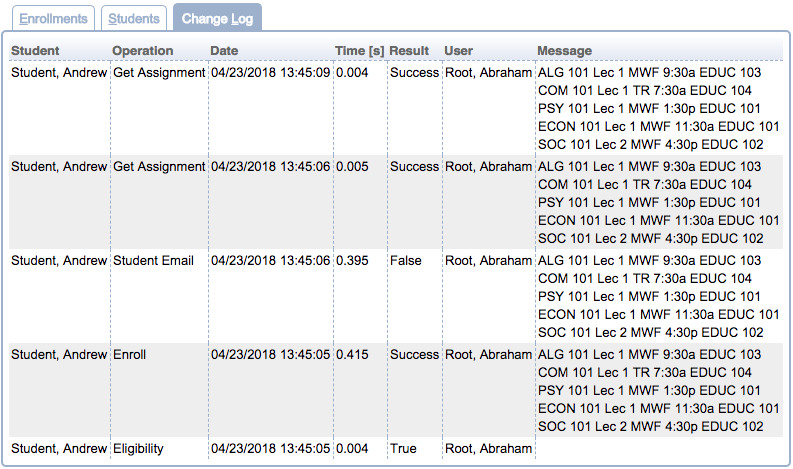
For the Change Log, the Filter can be used with further parameters
- operation: Operation that was executed during a change
- user: User that has made a change
- result: Result of the change
The Change Log table has the following columns
- Student
- Name of the student whose enrollments have changed
- Operation
- Operation that was performed
- Date
- Date and time of the change
- Time
- If the operation was timed, the amount of time it took to complete the operation.
- Result
- Result of the change (indicates e.g. whether the operation was successful or not)
- User
- User who has performed the change
- Message
- More details about the change (such as information about the class that was subject to the change)
Click on any change in the change log to get to its Change message screen with more detailed information about the change.
Operations
- Search
- Apply the criteria from the Filter
- Export
- Export table in CSV format
- More
- When showing Students table
- Select All
- Select all students in the list (check all the checkboxes)
- Clear All
- Send email…
- Send email to the selected students via Send email… screen that will pop up
- Mass cancel…
- Cancel the schedule(s) for all selected students and inform the students about it by email in the Mass cancel… screen that will pop up
- Change status to Status
- Set student status…
- Change student status using the Set student status… dialog which provides additional information about the selected status.
- Set student note…
- Sort By
- Select column that will be used to sort the table
- Column
- Select which columns to show or hide
 UniTime Help