 |
Online Student Scheduling Dashboard Manual |
| Last Updated: January 2026 | |
The purpose of this document is to provide a user guide for the functionality in the UniTime Online Student Scheduling Dashboard. The Online Student Scheduling Dashboard is available to users with various User Roles in the UniTime system. The Scheduling Dashboard is only available to users with the following roles:
Depending on the User Role used to access the Online Student Scheduling Dashboard, different functionality is available. In general, the Online Student Scheduling Dashboard allows users to see data in the following broad categories:
Depending on the User Role assigned to a user, access to the data in the above categories may be limited or not available. This guide will aim to point out which data and actions are available to the various User Roles an individual may have.
Note: This documentation may use the terms UniTime Student Scheduling Dashboard, UniTime Scheduling Dashboard, Student Scheduling Dashboard, and Online Student Scheduling Dashboard interchangeably.
The Batch Student Solver Dashboard offers similar functionality; the data displayed on the batch dashboard is related to the Student Scheduling Solver. For users that do not directly interact with the solver, the Batch Student Solver Dashboard shows the data from the last published solver run. During pre-registration, these are typically the results of the previous night’s simulation. After the batch is complete, the page displays the final run of the batch student scheduling solver, i.e., the final students’ schedules as they have been pushed to Banner.
The batch dashboard also shows the courses, including their limits, reservations, and timetable, as they were loaded in the solver. This means that the limits (and the remaining available space in the courses/classes) are based on the amount of space that was available to the students included in the solver run. The batch dashboard also only shows students who were included in the solver run, and only course requests for courses that they were allowed to take. This means that students who did not pre-register, did not match the solver settings (e.g., were not included in the New Beginners/Continuing UG Students group), or had a HOLD at the time of the solver run will not appear. Similarly, courses for which the student had a pending override request are not considered. The order of the courses listed for a student will also reflect any adjustments made by the solver, e.g., Vital course requests are typically moved above all other course requests. Students’ curricula and other information (such as student priority) will also reflect the data as it was loaded into the solver.
On the other hand, the Online Student Scheduling Dashboard shows the data as it is right now, so users can see how spaces are being filled, check waitlists, etc. Hence, the distinction of batch versus online.
That said, the Batch Student Solver Dashboard is typically only useful during pre-registration
After the batch is done, the Batch Student Solver Dashboard can still be used to see the initial schedule of a student.
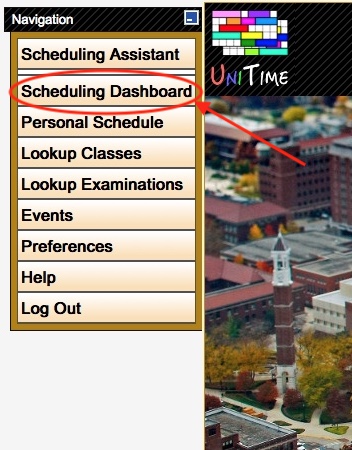
When a user logs into UniTime, if the user’s default user role has access to the Scheduling Dashboard in the academic session in which the user is logged in, then a menu item for the Online Scheduling Dashboard should be visible. If the Online Scheduling Dashboard is not visible, the user may need to switch to a different role or academic session.
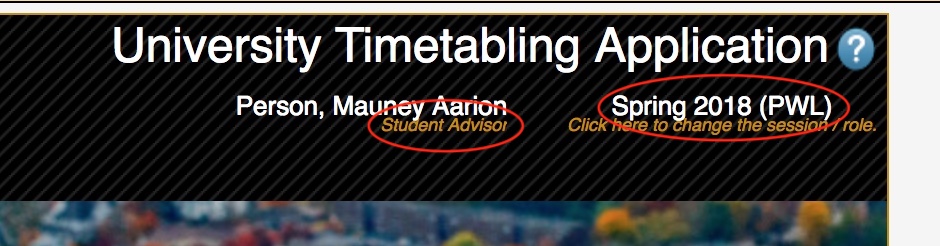
The user can see their role listed under their name at the top of the page and the academic session in the top right-hand corner.
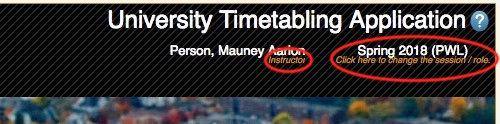
The role listed under the user’s name determines the functionality available to the user in the Online Student Scheduling Dashboard. Before selecting the Online Scheduling Dashboard menu item, the user should review their user role and academic session to ensure they are accessing the Online Student Scheduling Dashboard with the functionality appropriate to their role and the academic term they wish to work with.
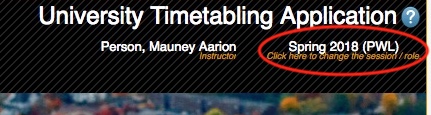
If a user needs to change the role or academic session, they can do so by clicking the label for the academic session.
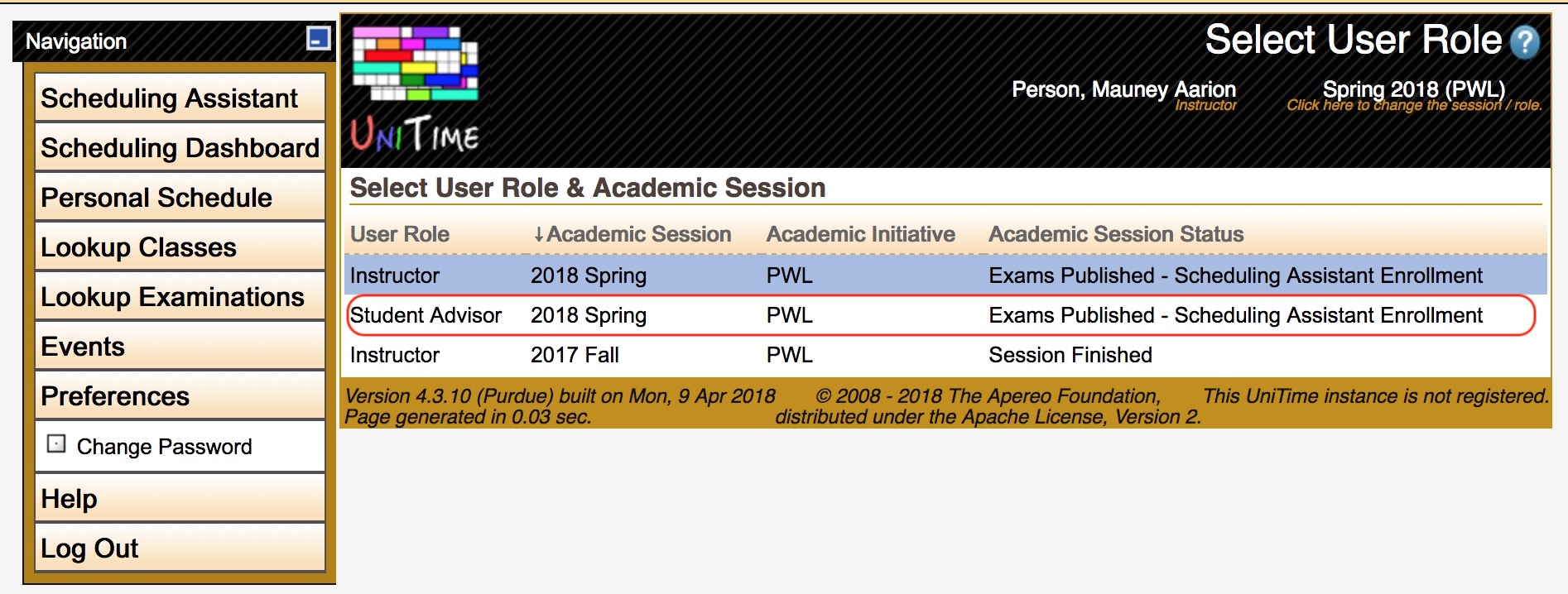
This brings up the Select User Role page. The user can then review the available combinations of roles and academic sessions and select the one to use. For purposes of this documentation, the user will choose their Student Advisor role.
Once a role is selected, the role listed under the user’s name will be updated to reflect the chosen role. The academic session listed in the upper right-hand corner will reflect the selected academic session.
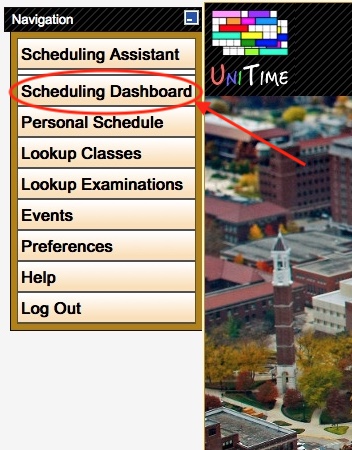
Once the user has determined they are using the desired user role and academic session, they can click the Online Scheduling Dashboard menu item.
This will take the user to the Online Student Scheduling Dashboard page.
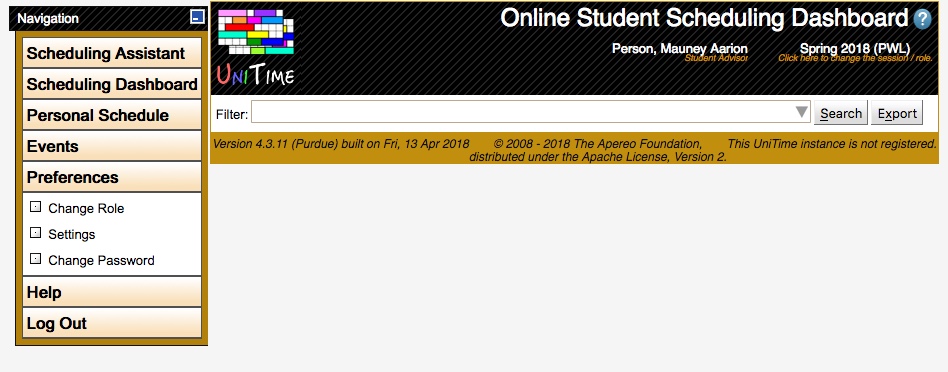
The filter at the top of the Online Student Scheduling Dashboard page controls the search criteria used to display data on the page. When the user accesses the Online Student Scheduling Dashboard page for the first time, the filter will be blank. Once the user enters a search criterion in the filter and performs a search, the page will remember the user’s last search and automatically populate the filter with that criterion the next time the user accesses the page.
Note: In addition to any search criteria entered into the Filter, the data displayed in the Scheduling Dashboard is also filtered by the access to the data granted by a user’s role.
Note: It is very important for the user to enter search criteria into the filter.
If the user enters no search criteria, the Online Student Scheduling Dashboard will return data for all students and all courses. This returns a massive volume of data and may take a while.
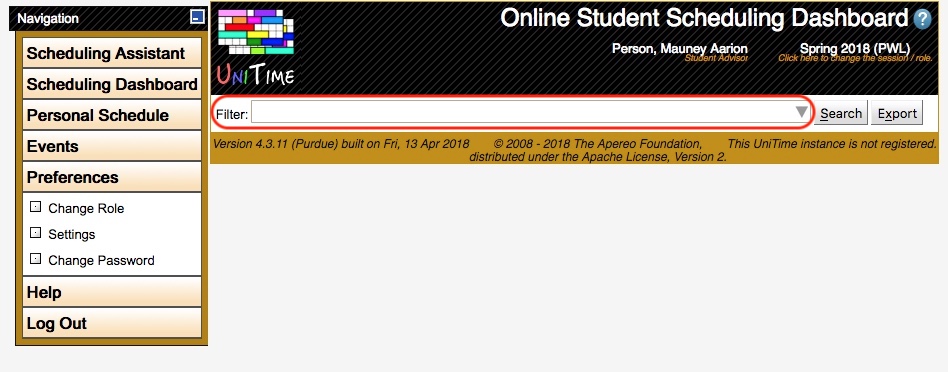
If the user knows the data they wish to search for, they can type the search criteria directly into the filter, and it will begin to show “suggestions” for filter parameters.
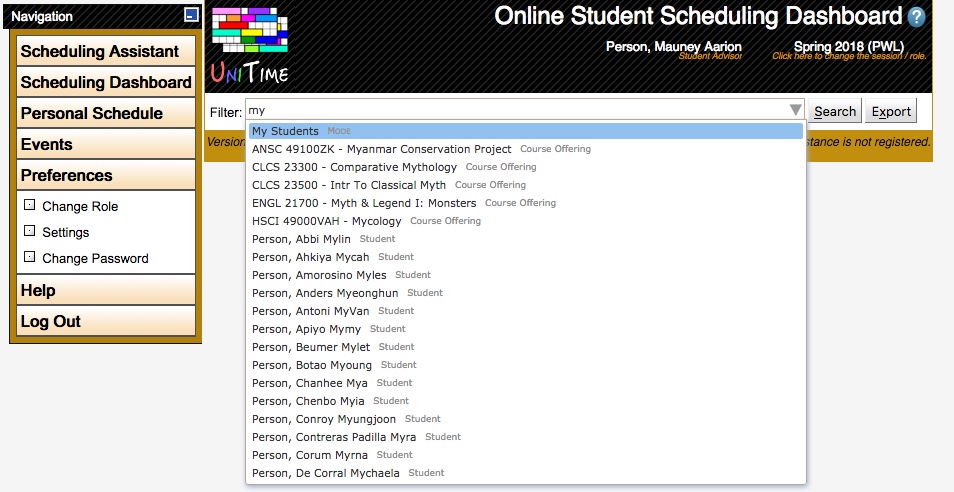
The user can then select an item from the suggestions, or continue typing and pressing Enter. This will then show the search criteria item with a colored background indicating that the search criteria have been added to the filter.
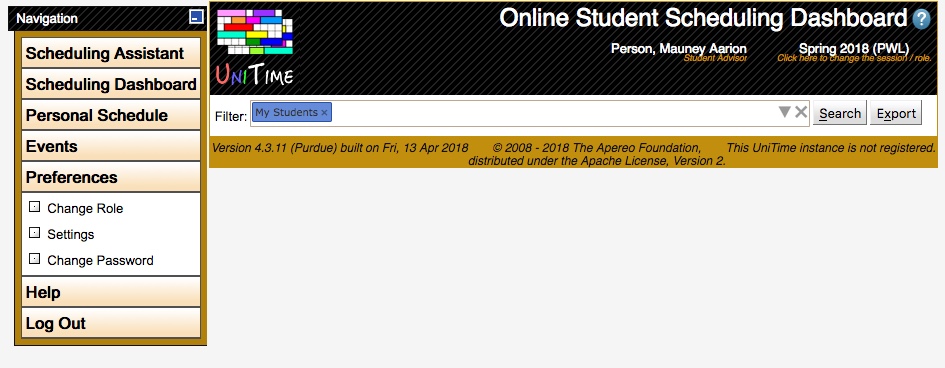
Typing into the filter also allows you to add search criteria that are not available in the Filter drop-down. The following tags are the additional tags (search categories) available to the user when typing into the Filter:
overlap:>=30 would return students who have 30 or more minutes of overlapping classes.time:8:30pm returns records for all students that have at least one class that begins at 8:30 pm.room:"CL50 224" would return all records where there is a class a student is enrolled into that meets in the room CL50 224. room:CL50 would return all records where there is a class a student is enrolled into that meets in the building CL50.crn:10023 would return the course that has the class that corresponds to Banner CRN 10023.limit:5 would limit the number of records displayed to 5.operation:eligibility retrieves only change log entries associated with eligibility checks.result:failure retrieves only change log entries with a result of failure.message:changed would return any change log entries whose message contains the word changed.In addition to the tags described above, it is also possible to use the following operations by typing into the filter:
credit:>=15 and overlap:>20 would return all records where students are enrolled in 15 or more credit hours and have more than 20 minutes of overlapping class time. credit:<5 or credit:>18 would return records where students were either enrolled in less than 5 credit hours or more than 18 credit hours.overlap:>5 would return all records where a student has enrolled in more than 5 minutes of overlapping classes.overlap:>=5 would return all records where a student has enrolled in 5 or more minutes of overlapping classes.credit:<5 would return all records where a student has enrolled in less than 5 credit hours.credit:<=5 would return all records where a student has enrolled 5 or fewer credit hours.credit:15..20 would return students enrolled in from 15 through 20 credit hours.The user can repeat this process to add as many search criteria to the filter as desired. The user can also use the Filter drop-down to add additional search criteria. When the user is satisfied with their search criteria, they press the Search button to perform the search.
If the user is unsure of the search they need to use, they can use the drop-down within the filter to enter their search criteria. To access the drop-down within the filter, the user clicks the inverted triangle icon.triangle on the right-hand side of the filter box.

This causes the Filter Drop-Down to appear.
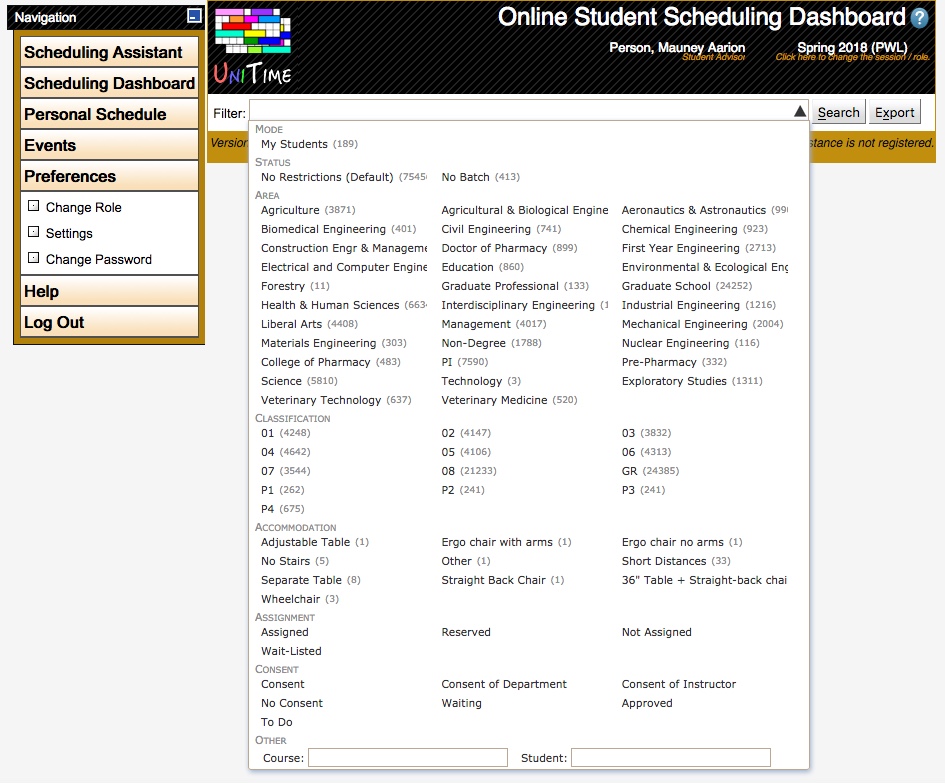
The filter drop-down lists the various pieces of data available to be used as search criteria for retrieving data within the Scheduling Dashboard. When known, next to each item that can be selected is a count of records that will be returned as a result of using that item as a search criterion in conjunction with the other items already selected in the search criteria.
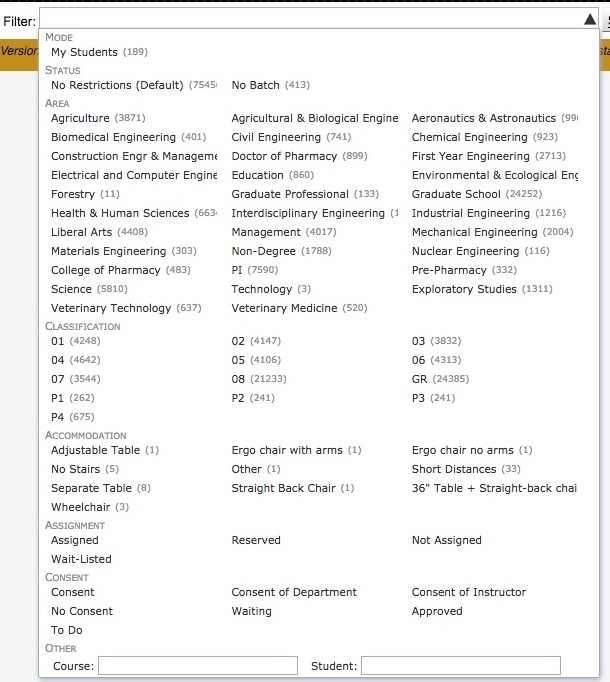
At the bottom of the filter is a text box for entering Course search criteria (e.g., COM 11400) and a text box for entering Student search criteria (e.g., John Doe).
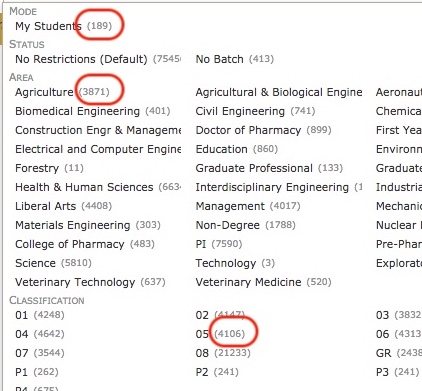
To build a query, the user selects items from the Filter drop-down. As the user selects items in the Filter drop-down, the possible items to select within the drop-down change dynamically to reflect the restrictions placed on the search.
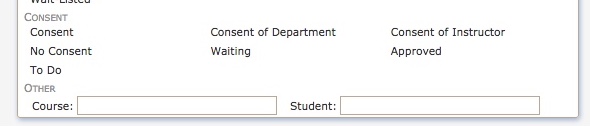
When the user is done building their search criteria, they click outside of the Filter Drop-Down or the triangle icon  to return to the Filter Box.
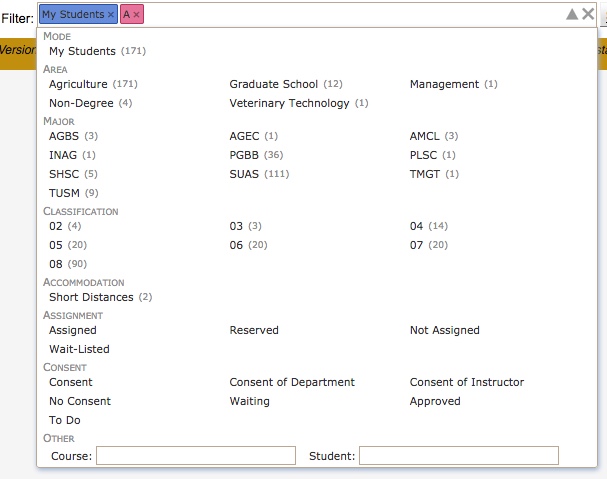
The user can then type in additional search criteria if they wish. When the user is satisfied with their search criteria, they press the “Search” button to perform the search.
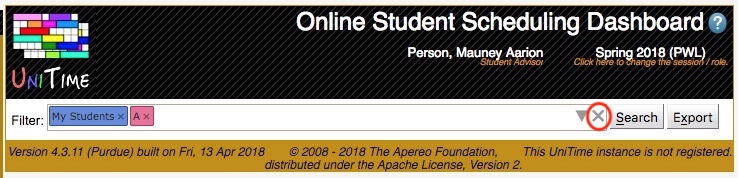
The search criteria entered in the Filter can be cleared by either backspacing over the criteria or by pressing the x icon  on the right-hand side of the filter box.
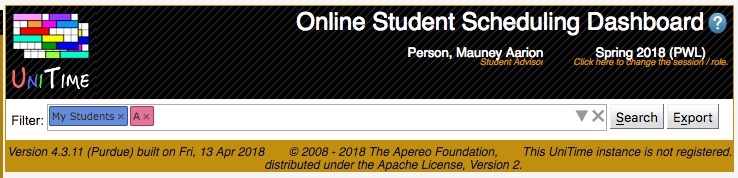
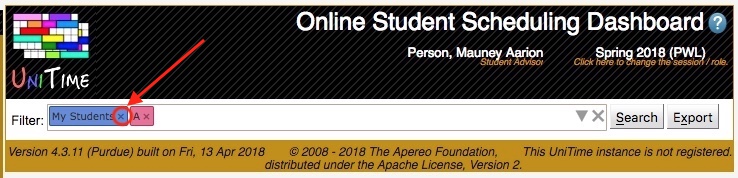
In addition to backspacing over a search criterion item, it is also possible to remove a single search criterion item by clicking the x icon on the right side of the item.
The data retrieved by doing a search using the criteria entered in the Filter is available to the user in a set of tabs. Each tab provides a specific view into the data. The Enrollments tab shows the data organized by Course Offering. The Student tab shows the data organized by Student. The Change Log tab, which is not available to all users, shows the change log data associated with the information retrieved by the search criteria. The user can switch between the Enrollments tab, the Students tab, and the Change Log tab by clicking the desired tab name.
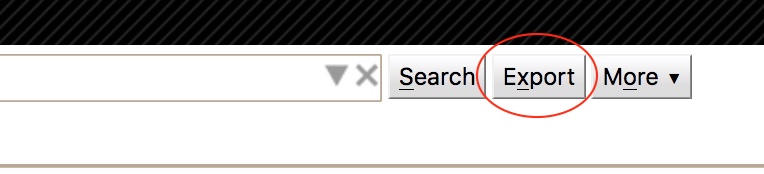
The data displayed on the selected tab of the Student Scheduling Dashboard may be exported in comma-separated format by pressing the Export to the right of the Filter.

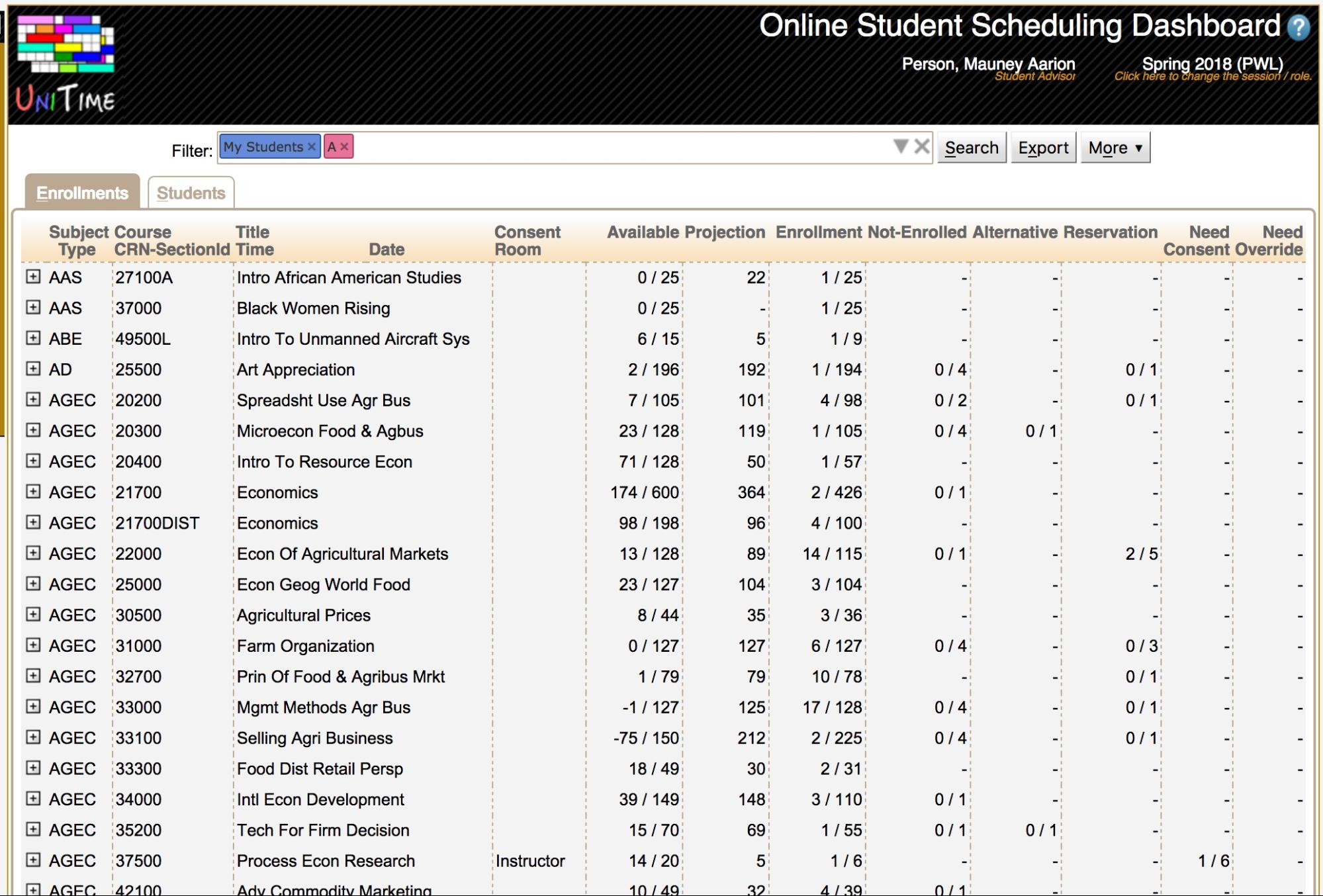
The Enrollments tab provides a course-centric view into the student scheduling data displayed in the Dashboard. This tab displays the data grouped by course.
The data on the Enrollments tab can be sorted by any column listed in the table. To do this, click on the column label for the column and use the Sort by option. The first Sort on the column sorts the table by the data in ascending order. The second Sort on the column sorts the table by the data in descending order.
It is also possible to use the drop-down menu on the More button to select the column to sort under the Sort By option.
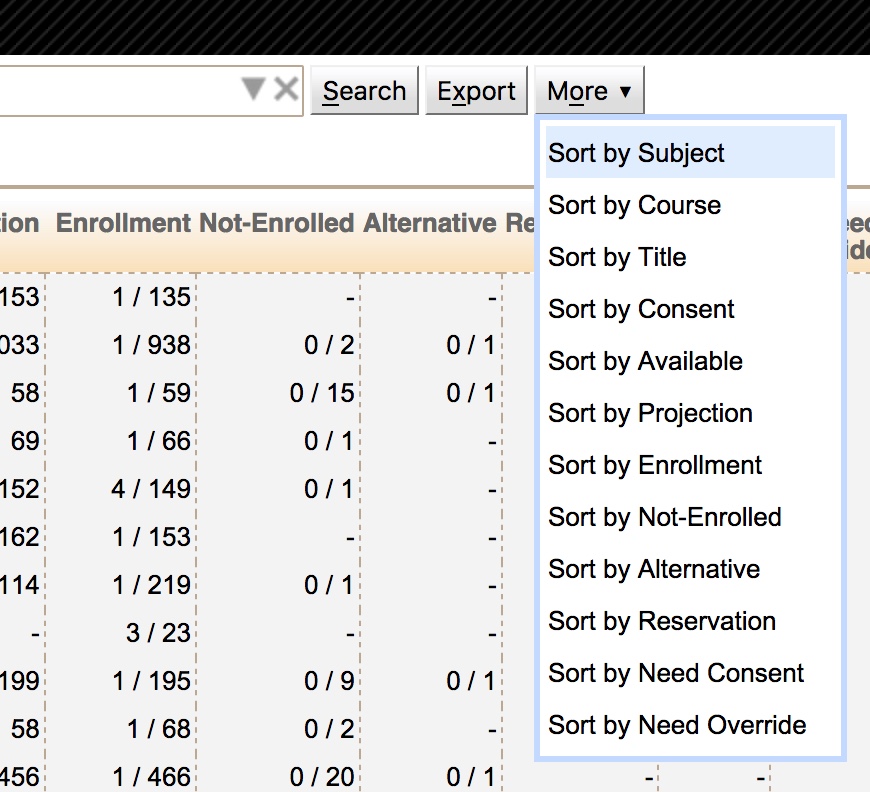
To show/hide a certain column, use the drop-down menu on the More button to select the column to sort under the Column option.

Suppose the user clicks on the plus icon  next to a course, it will expand the data displayed to include each class section that makes up the course.
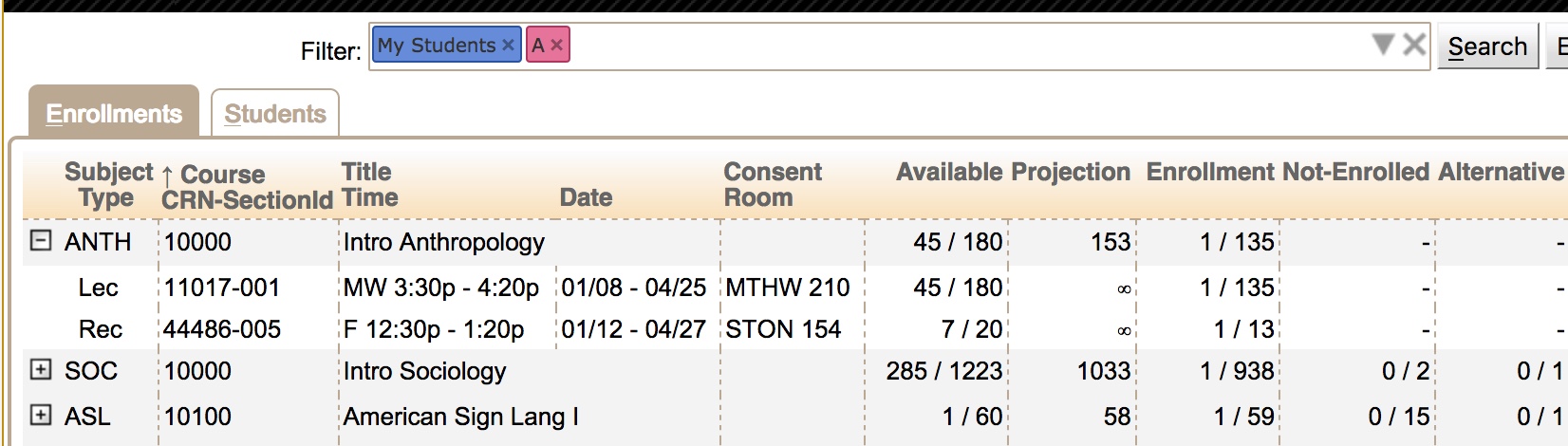
Once the class data is expanded, if the user clicks on the minus icon  next to a course, it will hide the class section data.
The Enrollments tab was designed to display a large amount of data in a compact format. The following is a description of each data column displayed on the page:
next to it has been clicked to show the class section data. If a class section is displayed, its instructional type will be listed in this column. next to it has been clicked to show the class section data. If a class section is displayed, its CRN and Banner Section ID are listed in this column with a dash (-) separating the two values. next to it has been clicked to show the class section data. If a class section is displayed, its time statement is listed here. next to it has been clicked to show the class section data. If a class section is displayed, the dates it is offered are listed here. next to it has been clicked to show the class section data. If a class section is displayed and it is assigned to a room, the room is listed here.Depending on the permissions granted to a user by their user role, a user may be able to drill down deeper into the data displayed on the Enrollments tab.
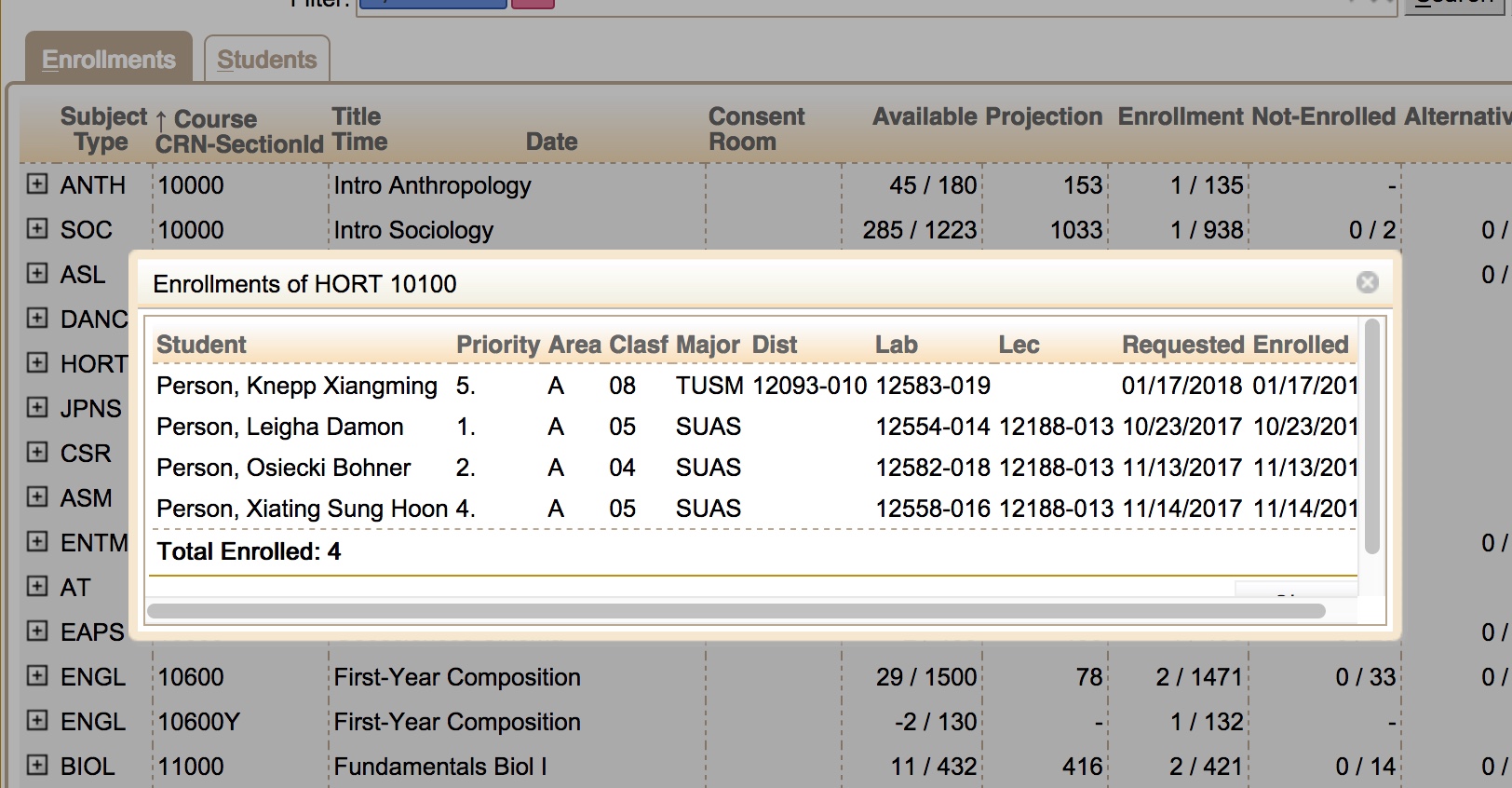
When the user clicks on a course or class that is listed on the page, an Enrollments pop-up window listing the students retrieved by the search criteria in the Filter is displayed.
Note: This pop-up may not display all students enrolled in the course or class if the search criteria in the Filter has restricted the set of students returned.

The Enrollments pop-up lists the following basic information about the students enrolled in the course or class that meet the search criteria in the Filter.
Note: The data in this pop-up can be sorted by clicking on any column label displayed.
Note: Columns that do not have relevant data may be omitted.
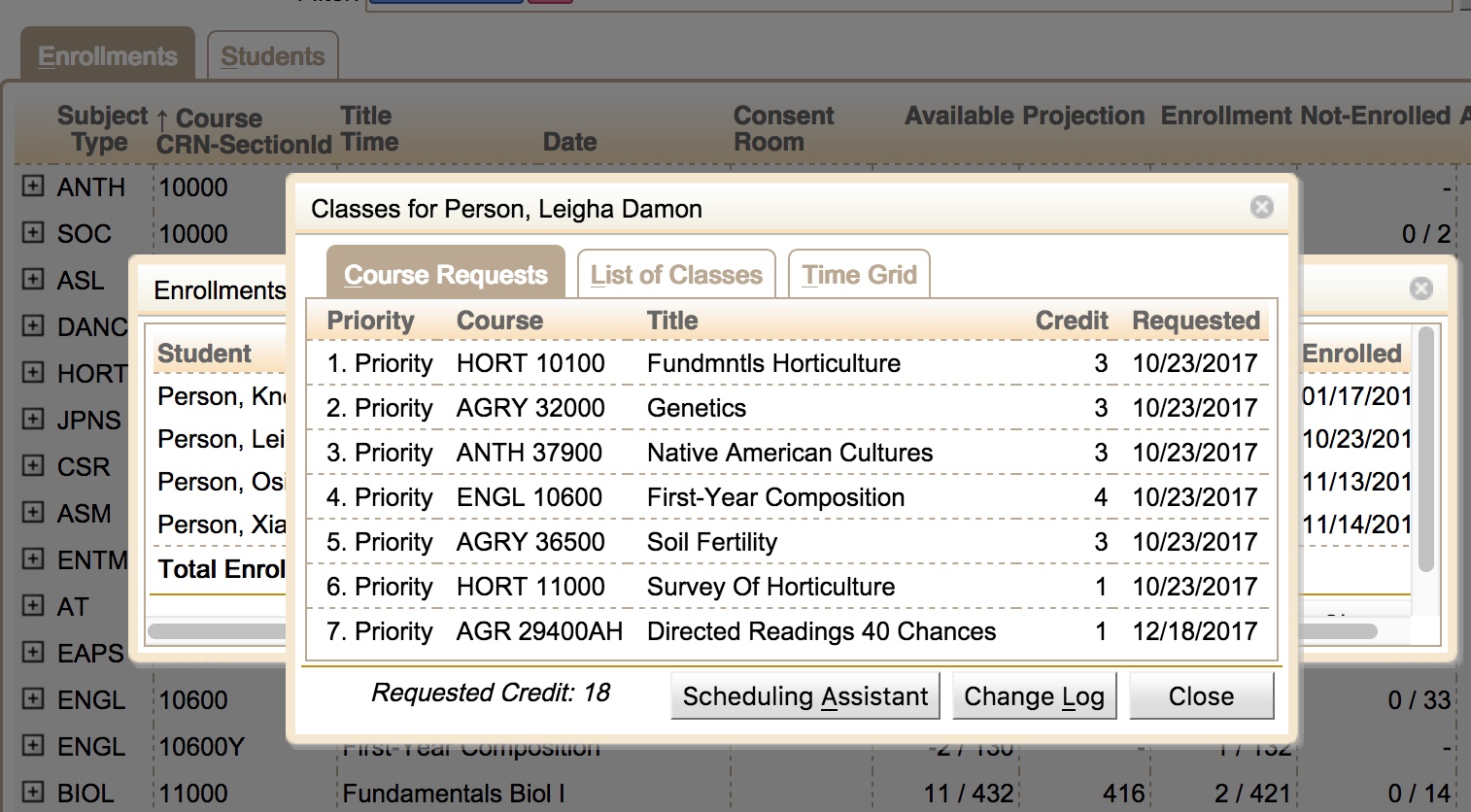
From the Enrollments pop-up, depending on the privileges granted in the user’s role, the user may be able to click on an individual student listed in the Student Detail pop-up and drill down to see the student’s course requests and/or schedule.

The Student Detail pop-up has multiple tabs and various buttons that may be displayed to a user depending on the permissions granted by their user role. The possible tabs and buttons that may be displayed are as follows:
There are also the following buttons:
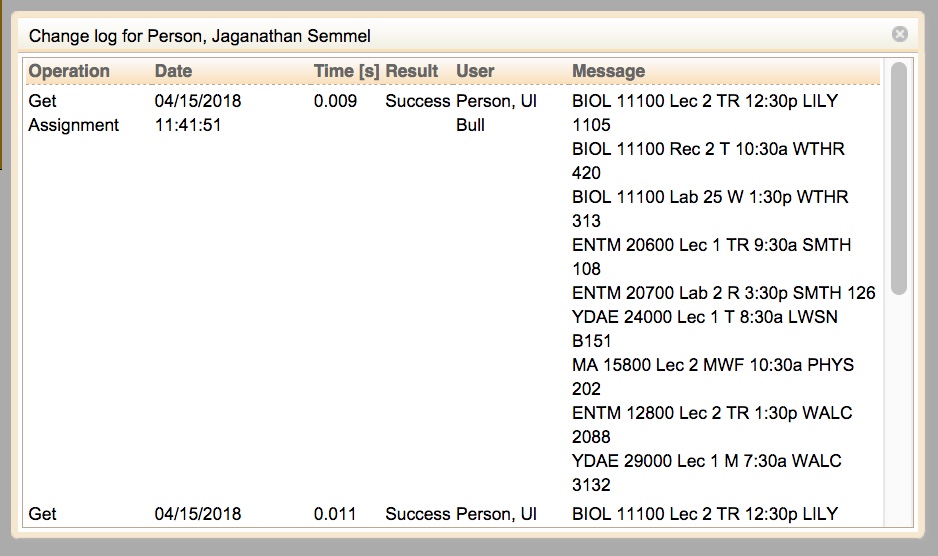
From the Student Detail pop-up, depending on the privileges granted in the user’s role, the user may be able to click the Change Log button in the Student Detail pop-up and drill down to see the change log associated with a student’s course requests and/or schedule.

The Change Log pop-up lists the following information about the changes associated with a student:
Note: The data in this pop-up can be sorted by clicking on any column label displayed.
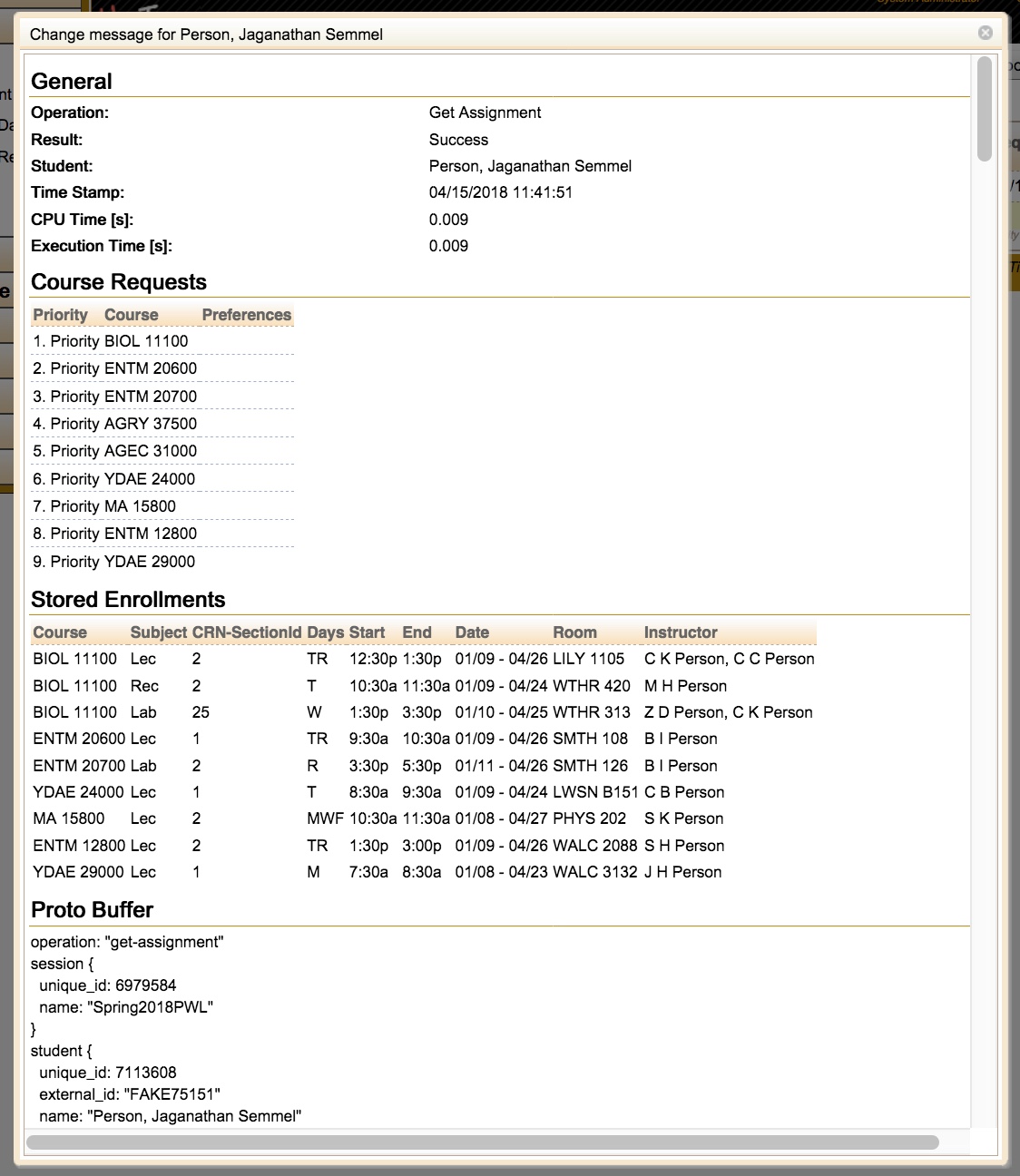
To get more detailed information about a change, the user can click on the change, which will bring up the Change Message pop-up.

The data displayed on the Change Message pop-up for a change log entry will vary based on the change that occurred. If the change log entry is associated with a student’s schedule, the entry will contain detailed information about the schedule before and after any changes were made. The change log entry will also contain the JSON Proto Buffer of the message used to make the change.
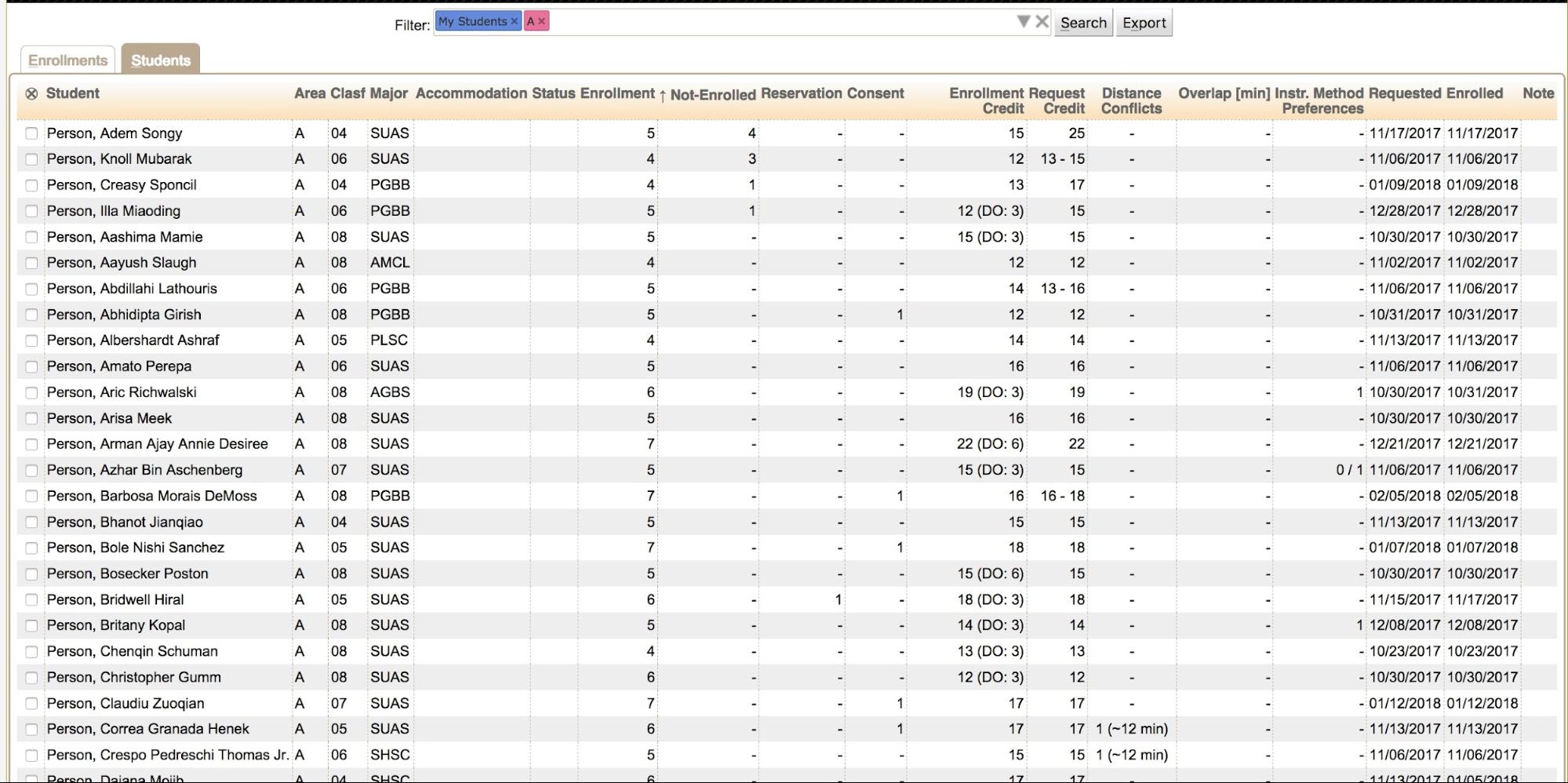
The Students tab provides a course-centric view into the student scheduling data displayed in the Dashboard. This tab displays the data grouped by student. In addition, depending on the permissions granted to the user by their user role, it allows the user to perform actions on selected students listed in the Dashboard.

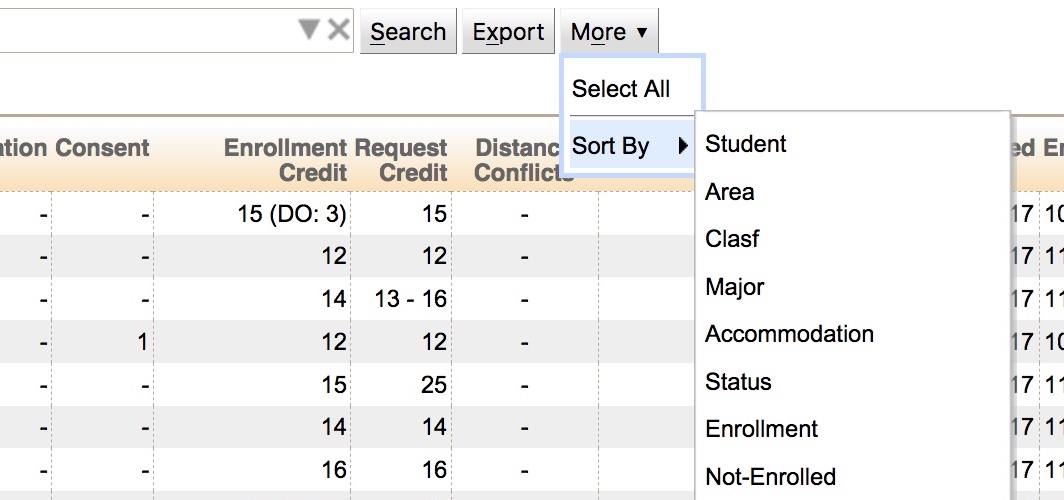
The data on the Students table can be sorted by any column listed on the table. To do this, click on the column label for the column and use the Sort by option. The first Sort on the column sorts the table by the data in ascending order. The second Sort on the column sorts the table by the data in descending order.
It is also possible to use the drop-down menu on the More button to select the column to sort under the Sort By option.

To show/hide a certain column, use the drop-down menu on the More button to select the column to sort under the Column option.

The Students tab was designed to display a large amount of data in a compact format. The following is a description of each data column displayed on the page:
Note: Some columns need not be displayed in the table if they are not applicable to the current situation.
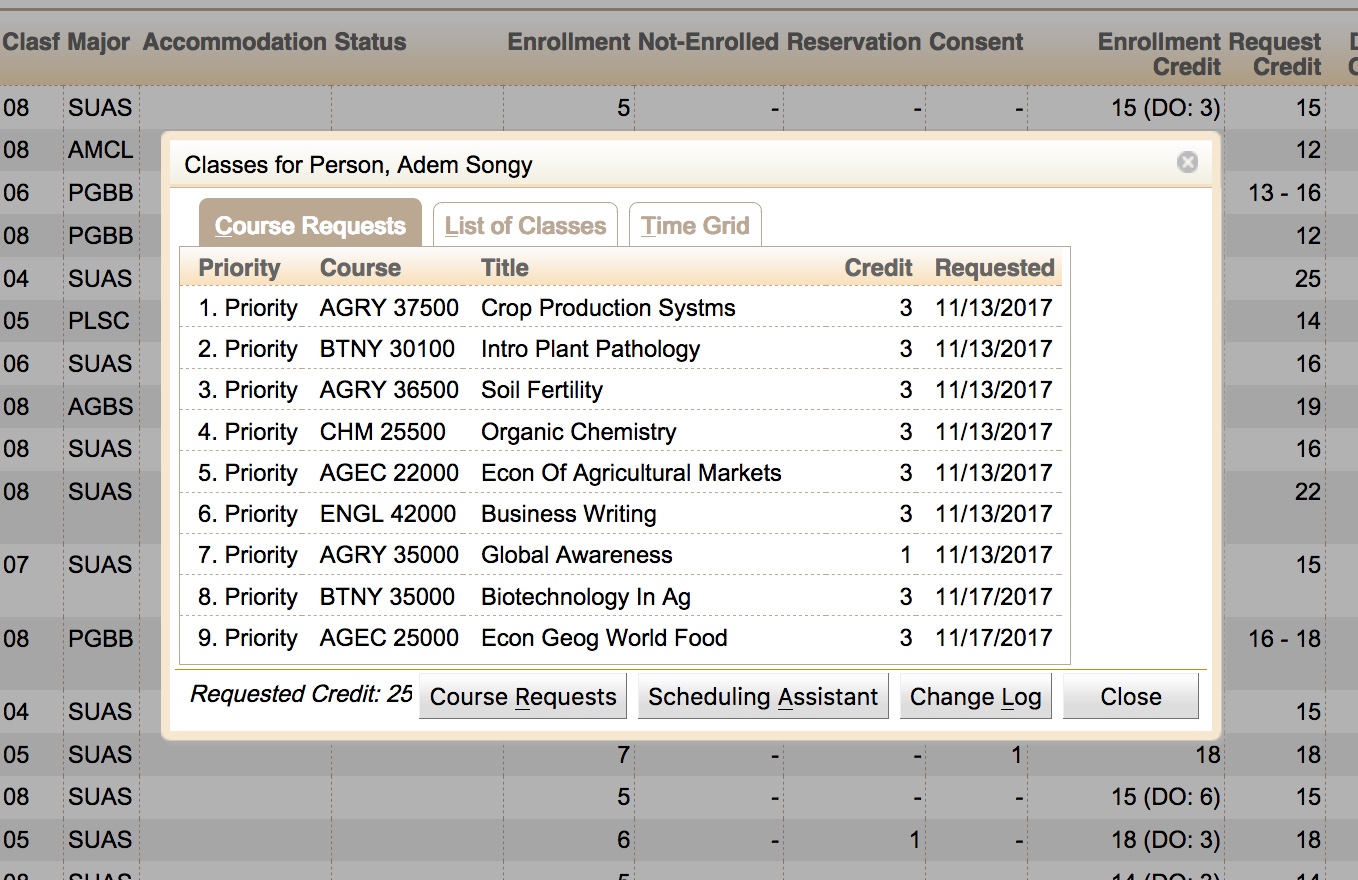
Depending on the permissions granted to a user by their user role, a user may be able to drill down deeper into the course data for a student. The user may be able to click on an individual student listed on the Students tab and drill down to see the student’s course requests and/or schedule.
This is the same Student Detail pop-up that can be reached from Drilling Down into the Student Data in the Enrollments Tab.
Depending on the permissions granted to a user by their user role, a user may be able to take an action on a select student or set of students.
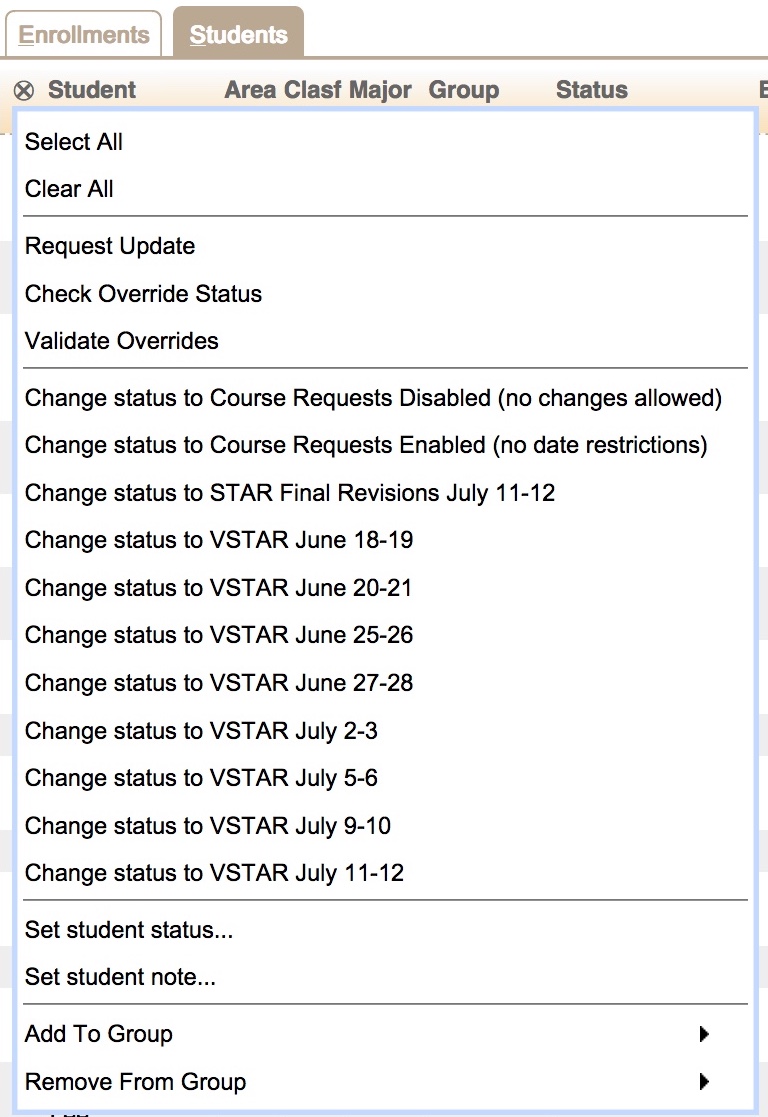
In order to see the actions available to take on a student, the user can select the checkbox in the leftmost column next to the student’s name and then click the ⊗ icon at the top of the column of checkboxes, or use the More button. This will bring up a menu that lists the actions the user can take.
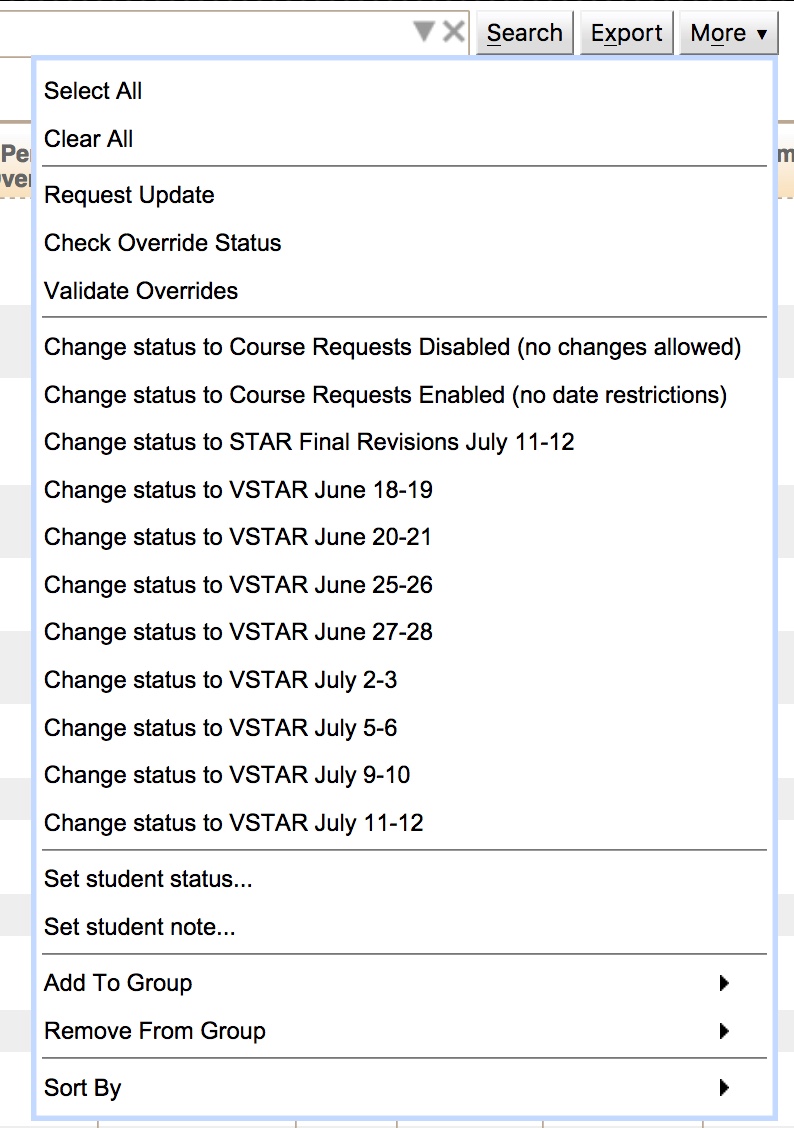
Another option to see the actions available to take on a student is to select the checkbox next to the student’s name and then click the “More” button on the right-hand side of the Filter at the top of the page. This will also bring up the menu that lists the actions the user can take.
There are eight basic actions that can be performed from the Students tab. They are as follows:
Note: The actions available to a user depend on the permissions granted to the user by their user role.
Selecting the Send Email action allows a user to send email to the selected student(s).
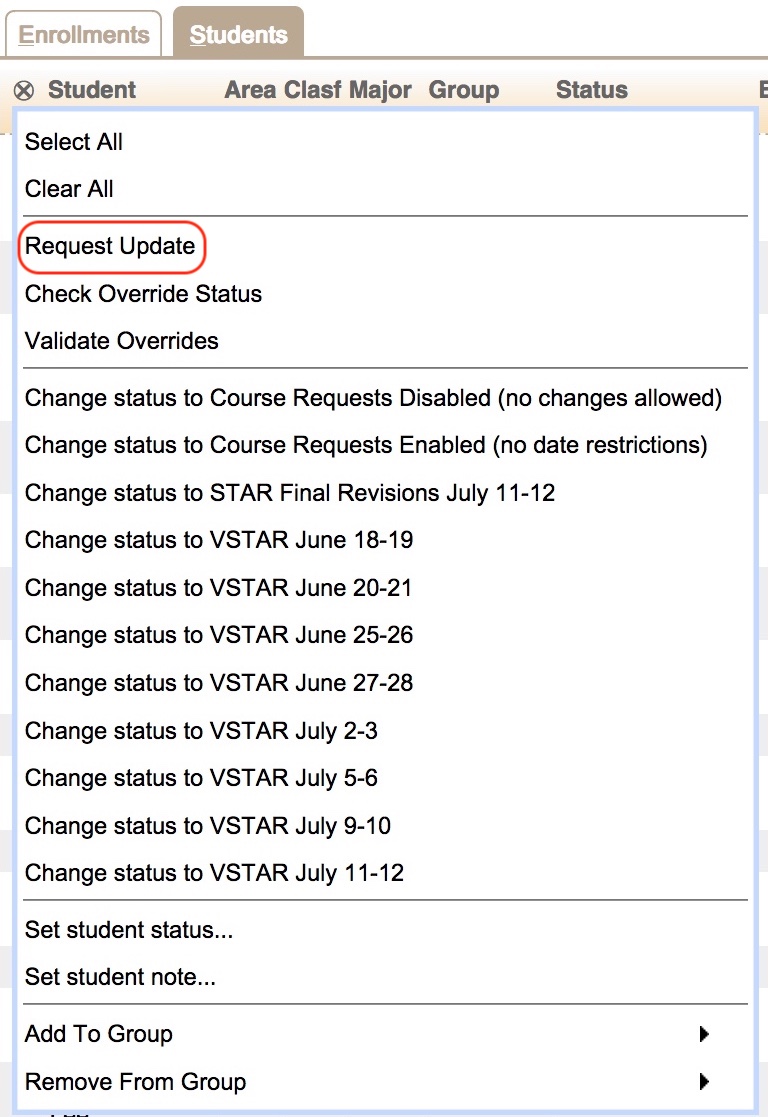
%session% in the Subject line will get automatically replaced with the current academic session.\Selecting the Request Update action allows a user to send a message to Banner requesting that an update message be sent from Banner to UniTime containing the data for the selected students.
The update message may take a few seconds to be received and responded to by Banner. The next time the user presses the search button after the message and its response have been processed, the data displayed to the user should contain the latest information about the student from Banner.
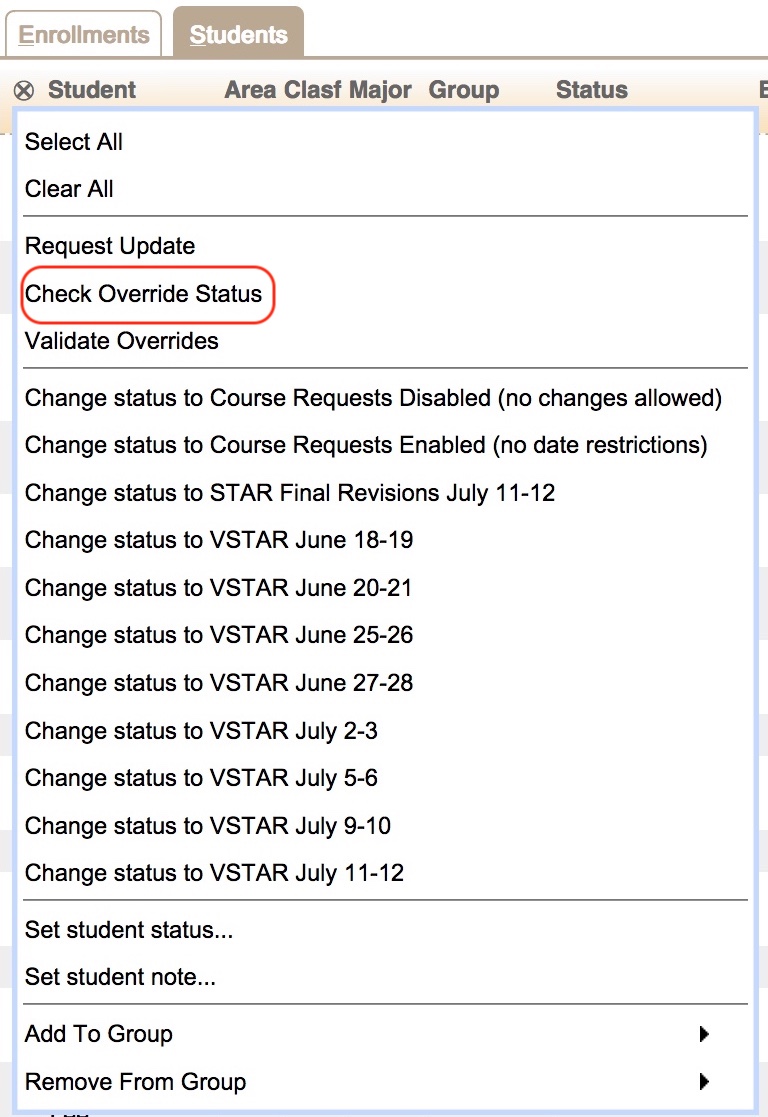
Selecting the Check Override Status action triggers UniTime to send a message to the Registration Workflow system for each known override request of the selected students, requesting the current Status of the override request.
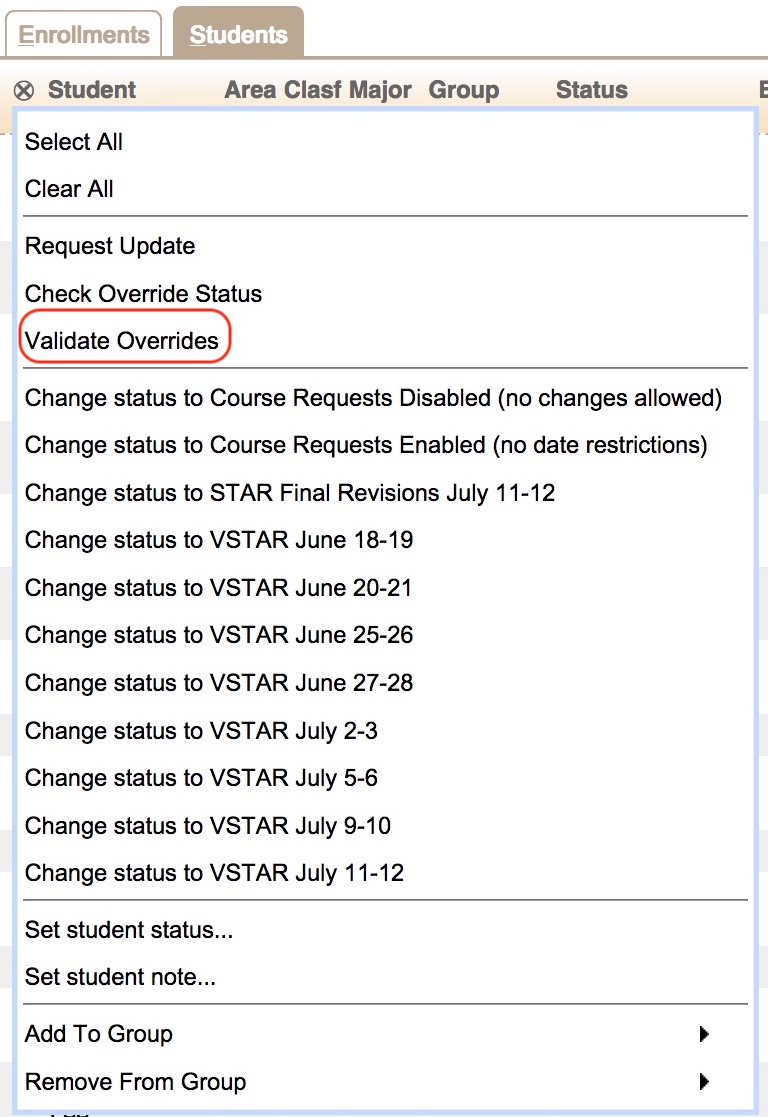
Selecting the Validate Overrides action triggers UniTime to send a message to the Registration Workflow system for each of the selected students that revalidates whether the course request or overrides are still needed.
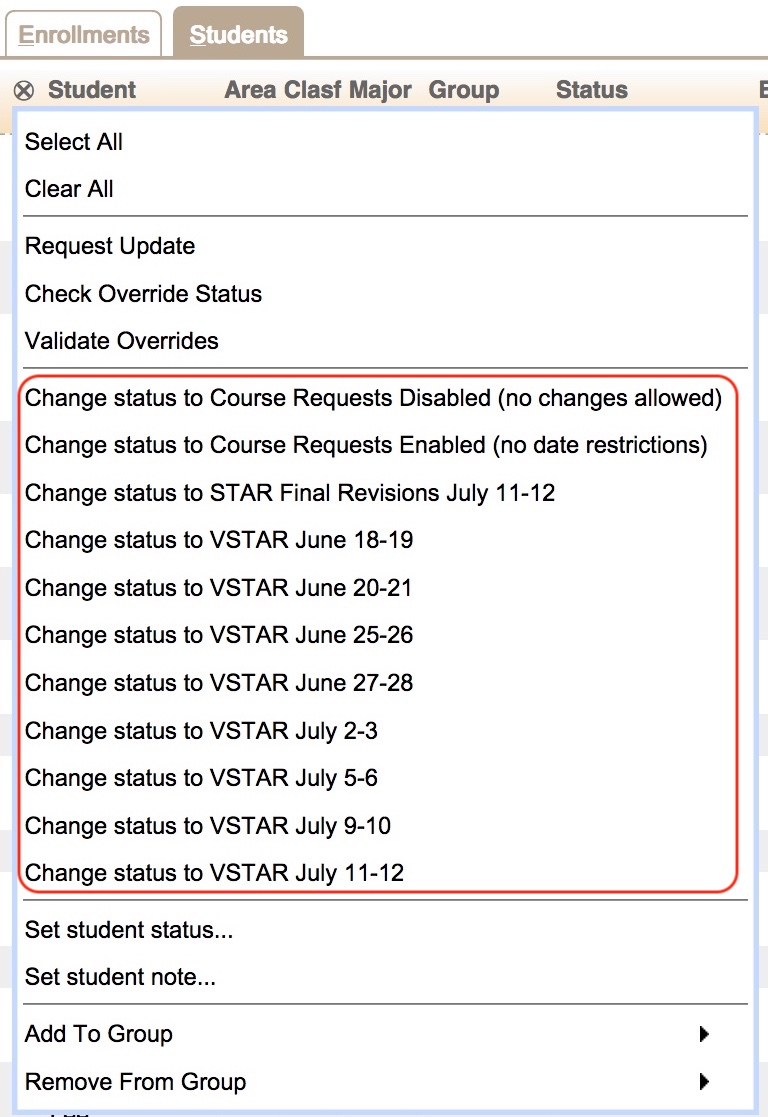
Three options are available for setting the Scheduling Status of the student or set of students that have been selected.
The first option is to select the Change Status to … option that corresponds with the Status that the user wishes to set on the students.
The second option is to select the Set student status … option.
This will open the Set student status… dialog. The Set student status… dialog provides more detailed information about each Status available when the user selects the Status in the Status drop-down.
The Set student status… dialog provides the following information about each status:
The Set Status button in the bottom right-hand corner of the dialog is used to update the selected students with the selected Status. The Close button in the bottom right-hand corner of the dialog exits the dialog without making any changes to the selected students.
The third option is to set the Status at the same time a note is added to the student or group of students. This is described later in this document under the Set a Note on a Student section.
Clicking the Set student note… action brings up a dialog where the user can add or edit a note that is displayed in the Scheduling Dashboard for the selected students. The dialog also allows the user to set the Scheduling Status for the selected students.
The Set student note… dialog provides a text box for the user to enter or edit a note that will be displayed for the selected students on the Scheduling Dashboard. If the user does not select a Status (a Status of `-’) and clicks the Set Note button, then the Note will be stored, and no changes will be made to the scheduling statuses of the selected students. If the user selects the Close button, no changes will be made.
If the user selects a Status, the dialog will show the same information about the selected Status as is shown in the Set student status… dialog. If the user clicks the Set Note button with a Status selected, the Note and the Scheduling Status for the selected students will be updated. If the user clicks the Close button, then no changes will be made.

The Release or Suppress PIN option gives the user the ability to release or suppress PIN for all the selected students, respectively. This is the same as checking (or un-checking) the PIN on the Advisor Course Recommendations page for all the selected students.
For students with their PIN released, you can see their PIN in the PIN column. If the PIN column does not show because originally there was no student with a PIN released shown on the page, you can click Search to refresh the page.
The user can click on either the Add To Group or Remove From Group action to add the selected students to a Student Group or remove the selected students from a Student Group.
Note: A user can only add or remove students from a Student Group if the user has permission to take that action on the selected students.
Clicking the Add To Group or the Remove From Group actions brings up a list of groups available to the user to assign to the student. Clicking a Group makes the change.
The Change Log tab provides users with an administrative role the ability to view the change log for the student scheduling data displayed in the Dashboard. This tab displays the data grouped by change.
The data on the Change Log table can be sorted by any column listed on the table. To do this, click on the column label for the column and use the Sort by option. The first Sort on the column sorts the table by the data in ascending order. The second Sort on the column sorts the table by the data in descending order.
It is also possible to use the drop-down menu on the More button to select the column to sort under the Sort By option.
To show/hide a certain column, use the drop-down menu on the More button to select the column to sort under the Column option.
The Change Log table was designed to display a large amount of data in a compact format. The following is a description of each data column displayed on the page:
A user can drill down deeper into the change log data for a student. The user can click on an individual student listed on the Change Log tab and drill down to see the detailed information for the change listed. Clicking on a change brings up the Change Message pop-up.
The data displayed on the Change Message pop-up for a change log entry will vary based on the change that occurred. If the change log entry is associated with a student’s schedule, the entry will contain detailed information about the schedule before and after any changes were made. The change log entry will also contain the JSON Proto Buffer of the message used to make the change.
The documentation above mentions many times that the data and actions available to a user are governed by the user role used to access the Student Scheduling Dashboard. The roles covered are as follows:
The goal of this section is to provide some guidance on what data and actions should be available for the various roles listed above.
Users who access the Student Scheduling Dashboard with one of the various Administrative roles defined in the system have access to all data and functionality available within the Dashboard.
Users who access the Student Scheduling Dashboard with the Student Advisor role will have access to the Enrollments and Students tabs. Users with the Student Advisor role can see data for all students. They have the ability in the filter to restrict the data to “My Students”. The Student Advisor role users will be able to drill down into the data on both of these tabs and can perform a subset of the actions available. They can set the scheduling status for a student to any scheduling status that has been marked as usable by advisors. If no scheduling statuses of this type are available, then Student Advisors cannot change a student’s scheduling status. Student Advisors can add or remove their students from any student group that is of a type that is manageable by advisors. If no student groups of this type exist, then functionality to Add or Remove Student Groups is not available. Student Advisors can see the change log for individual students.
Users who access the Student Scheduling Dashboard with the Department Schedule Manager role will have access to the Enrollments and Students tabs. Users with the Department Schedule Manager role can only see data for the courses in the subject areas they manage and for the students enrolled in those courses. The Department Schedule Manager role users are able to drill down into the data on both of these tabs, but cannot perform any actions on the students.
Users who access the Student Scheduling Dashboard with the Instructor role will be able to see the Enrollments and Students tabs of the Dashboard, but may not see any data unless they are listed on a course as a coordinator at the offering level. If the user is listed on a course as a coordinator at the offering level, then they can only view data for that course. Users with the Instructor role cannot drill down to see an individual student’s schedule. Users with the Instructor role cannot perform any actions on the students.
Users who access the Student Scheduling Dashboard with the View All role will have access to the Enrollments and Students tabs. Users with the View All role can see data for all students. The View All role users are able to drill down into the data on both of these tabs, but cannot take any action on the students.
Users who access the Student Scheduling Dashboard with the View Department role will have access to the Enrollments and Students tabs. Users with the View Department role can only see data for the courses in the subject areas for their department and for the students enrolled in those courses. The View Department role users are able to drill down into the data on both of these tabs, but cannot perform any actions on the students.
| Back to UniTime Online Documentation | © UniTime 2026 | Content available under GNU Free Documentation License 1.3 |
 UniTime Help